 Music Momentos - Memo App
Open the app
Music Momentos - Memo App
Open the app
User guide
A tour of every part of Music Momentos, screen by screen. For quick answers, see Help.
Screenshots from
Recording
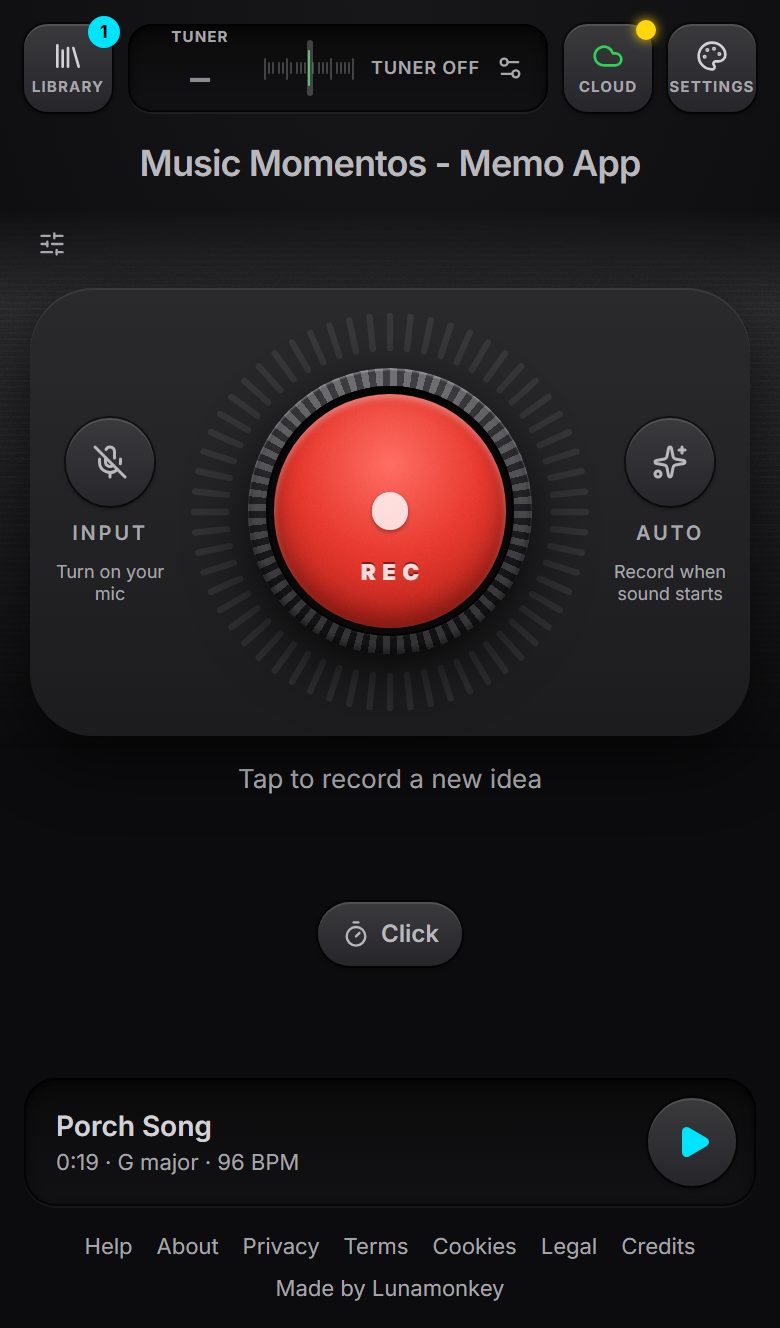
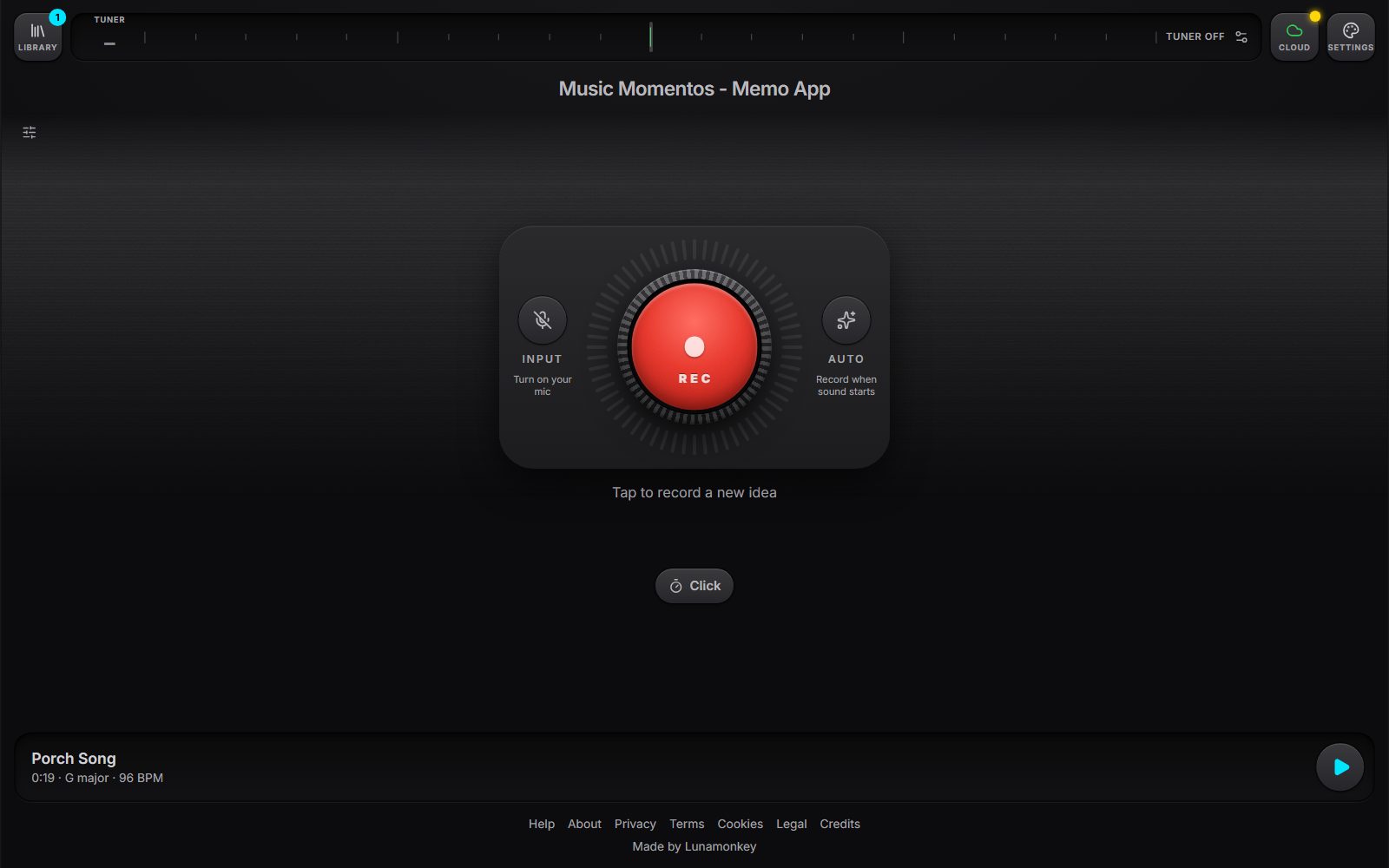
- Record: tap the big button to start, and again to stop. The first time, allow the microphone when your browser asks.
- Input turns the mic on without recording, for the tuner or Auto.
- Auto starts recording as soon as you play, and stops after a few seconds of quiet. It keeps the moment just before, so the first note isn't lost.
- Click counts you in on a metronome, so the take starts on the downbeat with exact bars. Preview it, set the tempo and count-in, and use headphones for a click while you record.
- Recording quality (the sliders icon, top left): mono or stereo, 16 or 24 bits, 96 kHz.
- Your latest idea sits at the bottom: tap it to open it, or play it straight away.
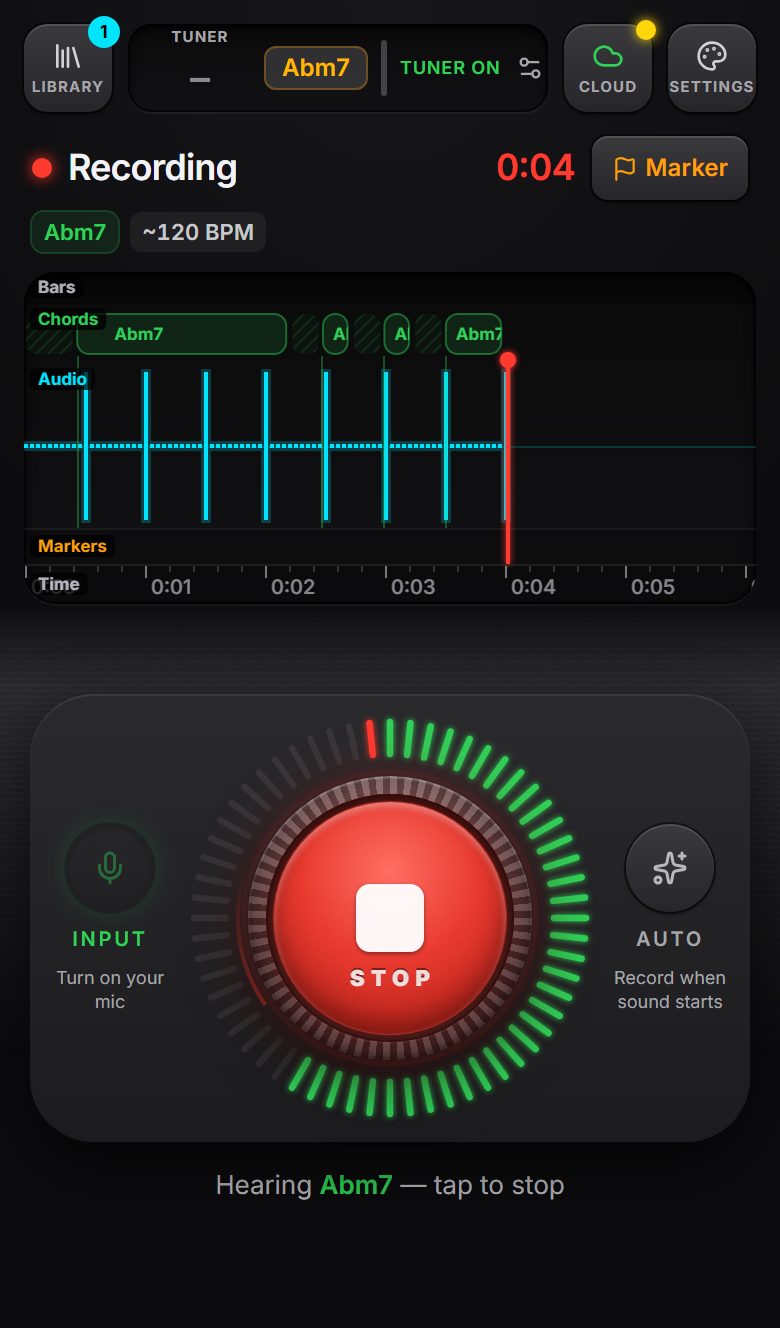
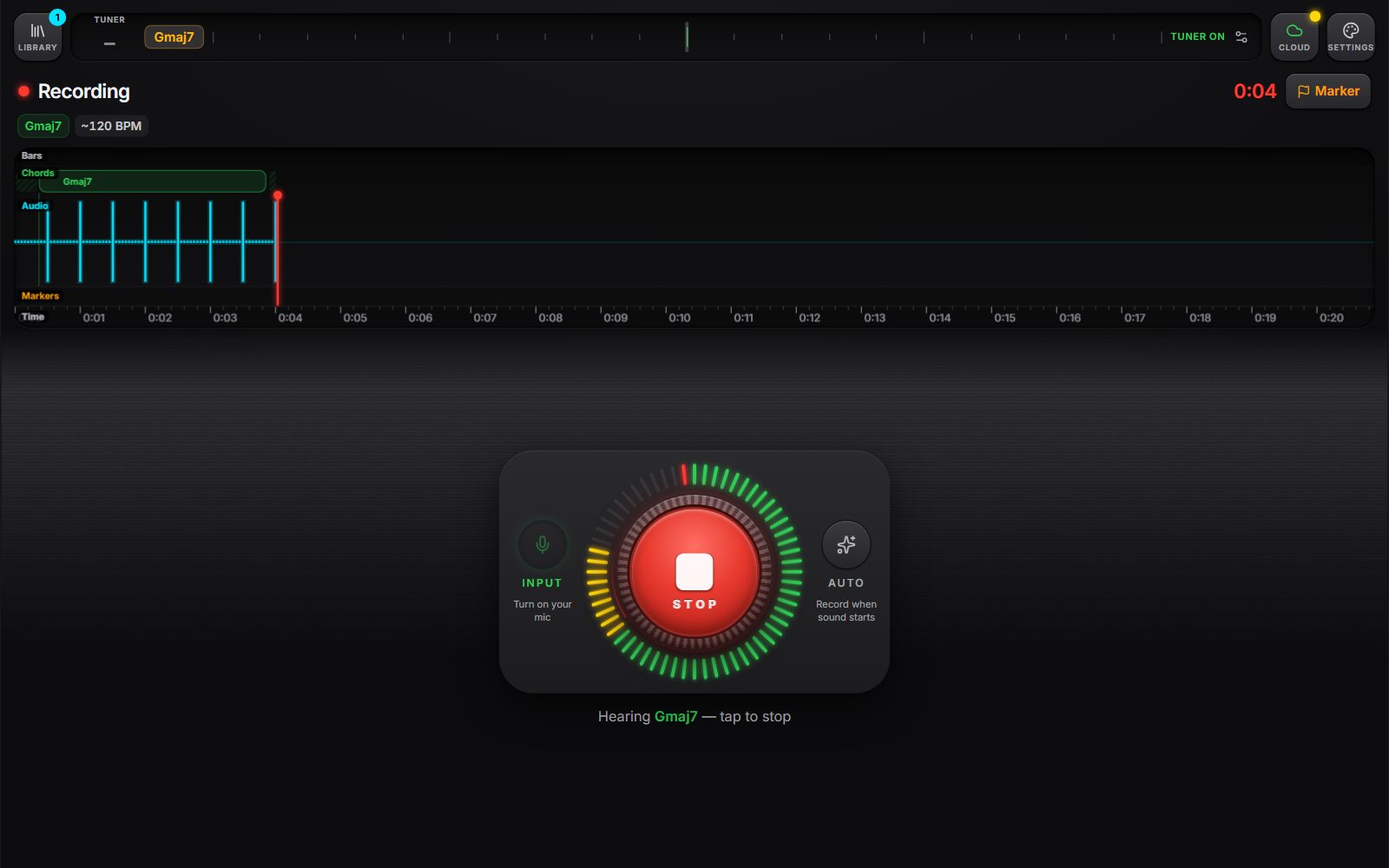
- The waveform draws as you play, with the chord the app hears and its tempo guess above it.
- Marker (or M) flags a moment to come back to: "chorus idea", "fix this bit".
- A take can be up to 10 minutes long (less in stereo or high resolution), with a warning a minute before.
- The idea is saved the moment you stop. The key, tempo and chords are worked out in the background.
My Ideas
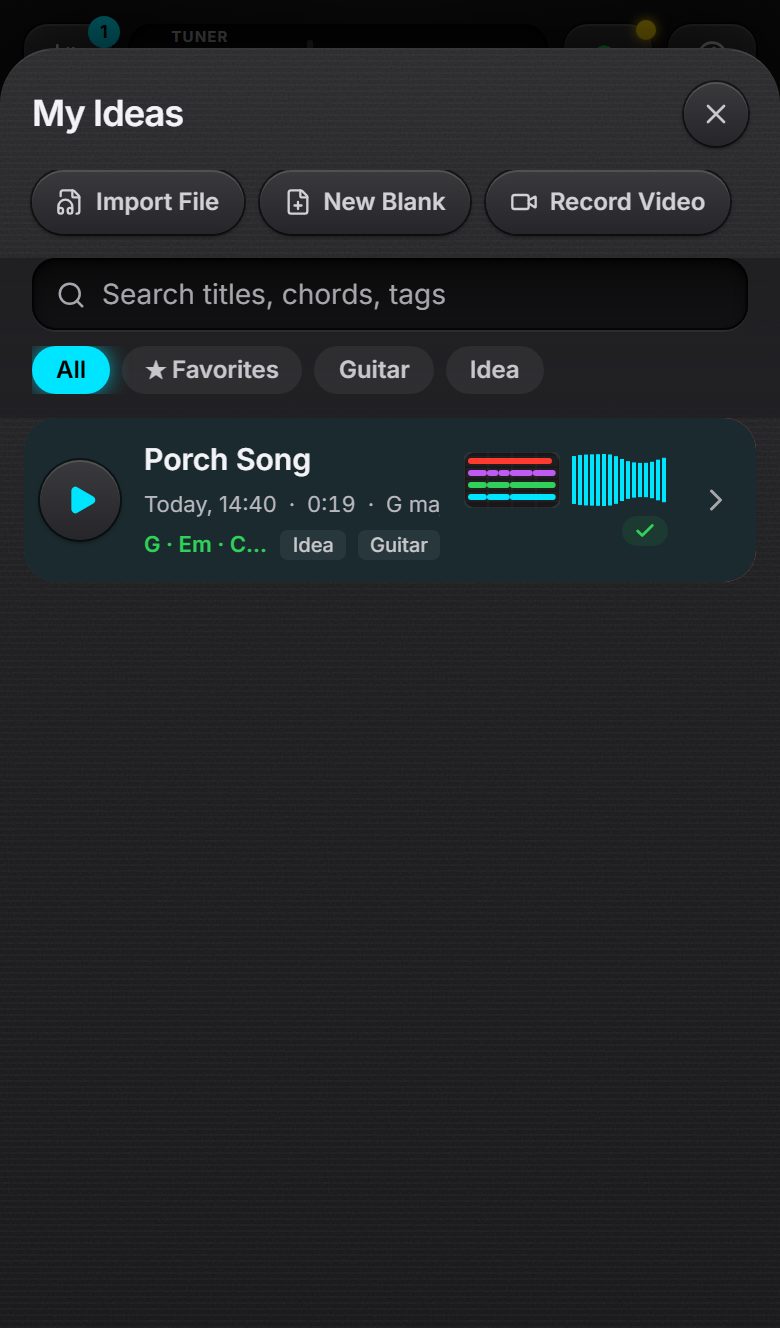
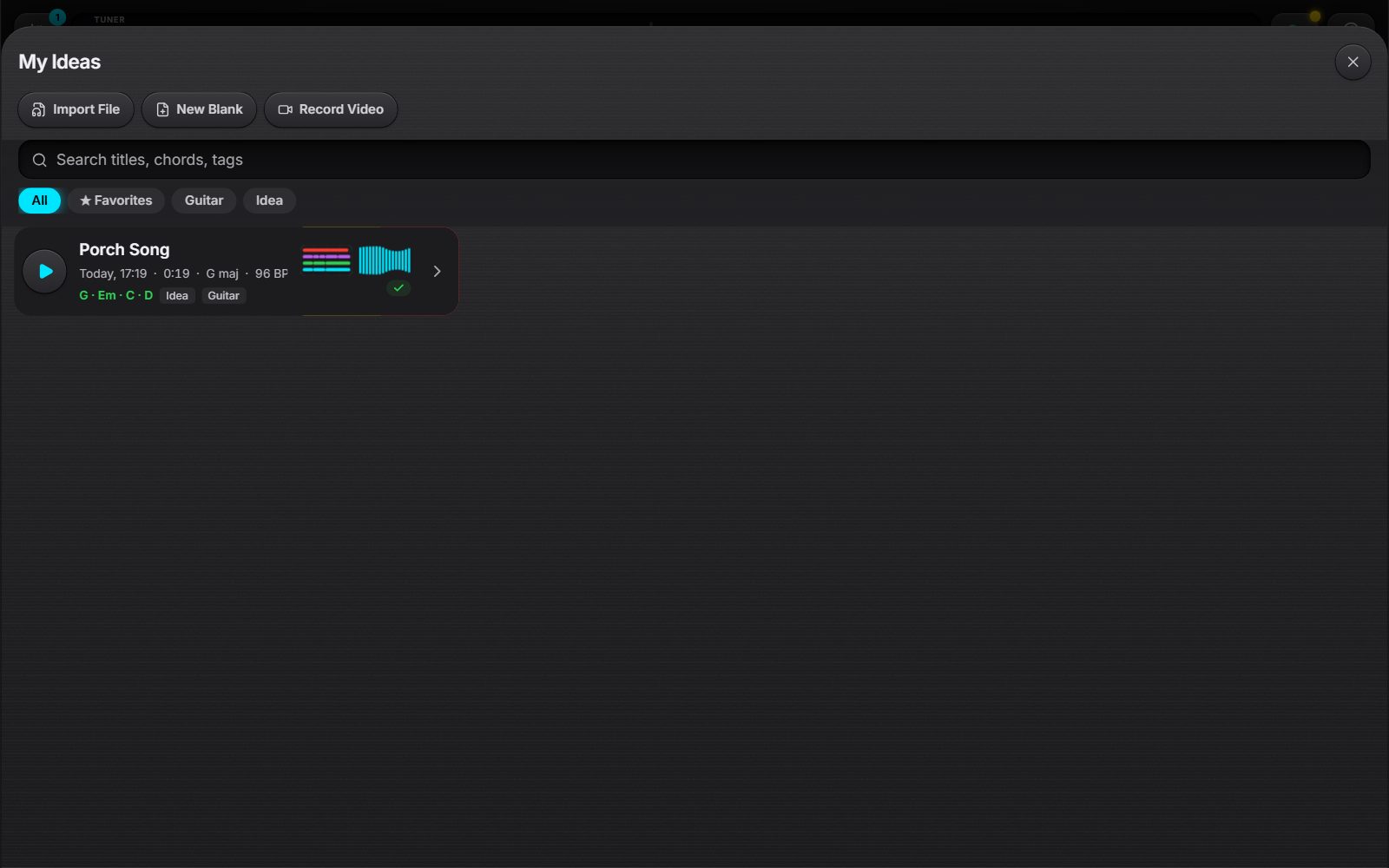
- Search by title, chord, tag or notes, and filter by tag or favourites.
- Import File adds an audio file. New Blank starts an idea with no recording, to write chords for the band (its tempo, key and length come from Settings › New ideas). Record Video films an idea.
- Tap an idea to open it, or its play button to hear it. Swipe left to star or delete it: deleted ideas wait in Recently Deleted for 30 days.
The player
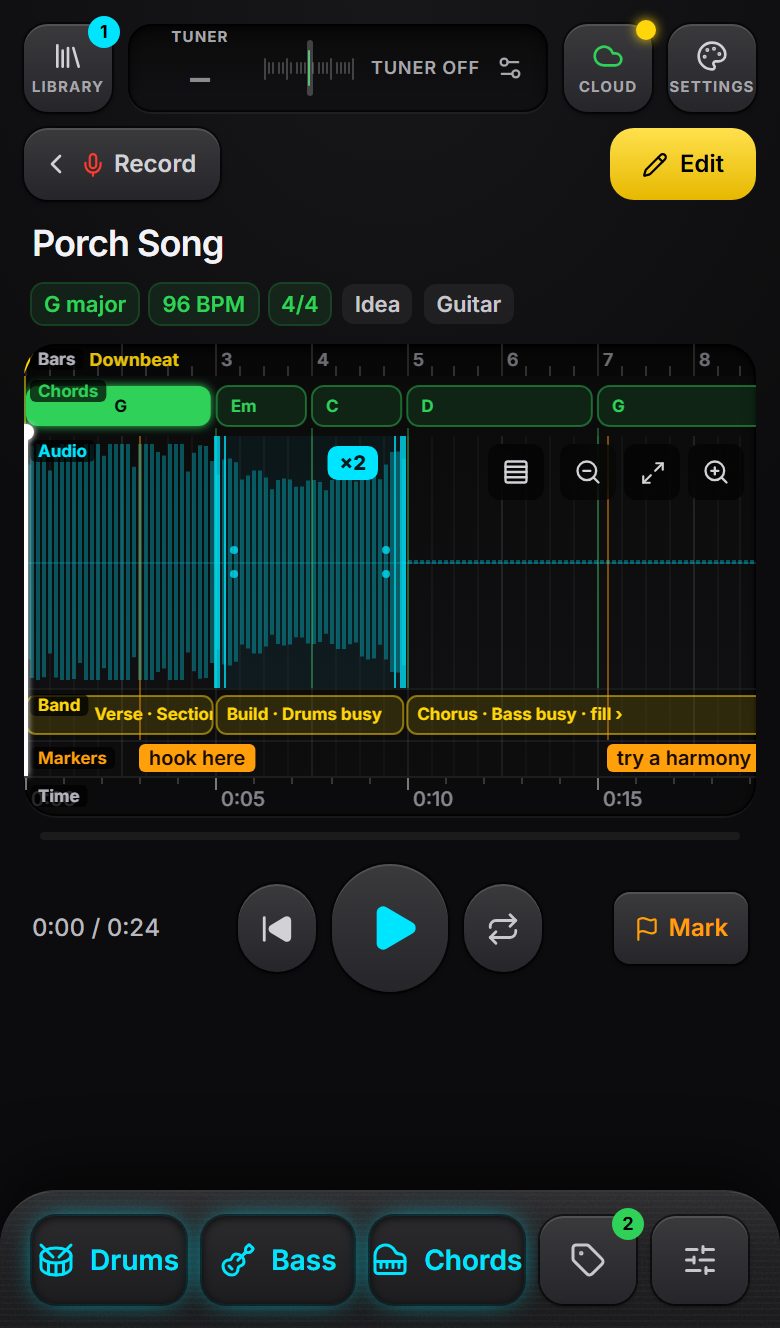
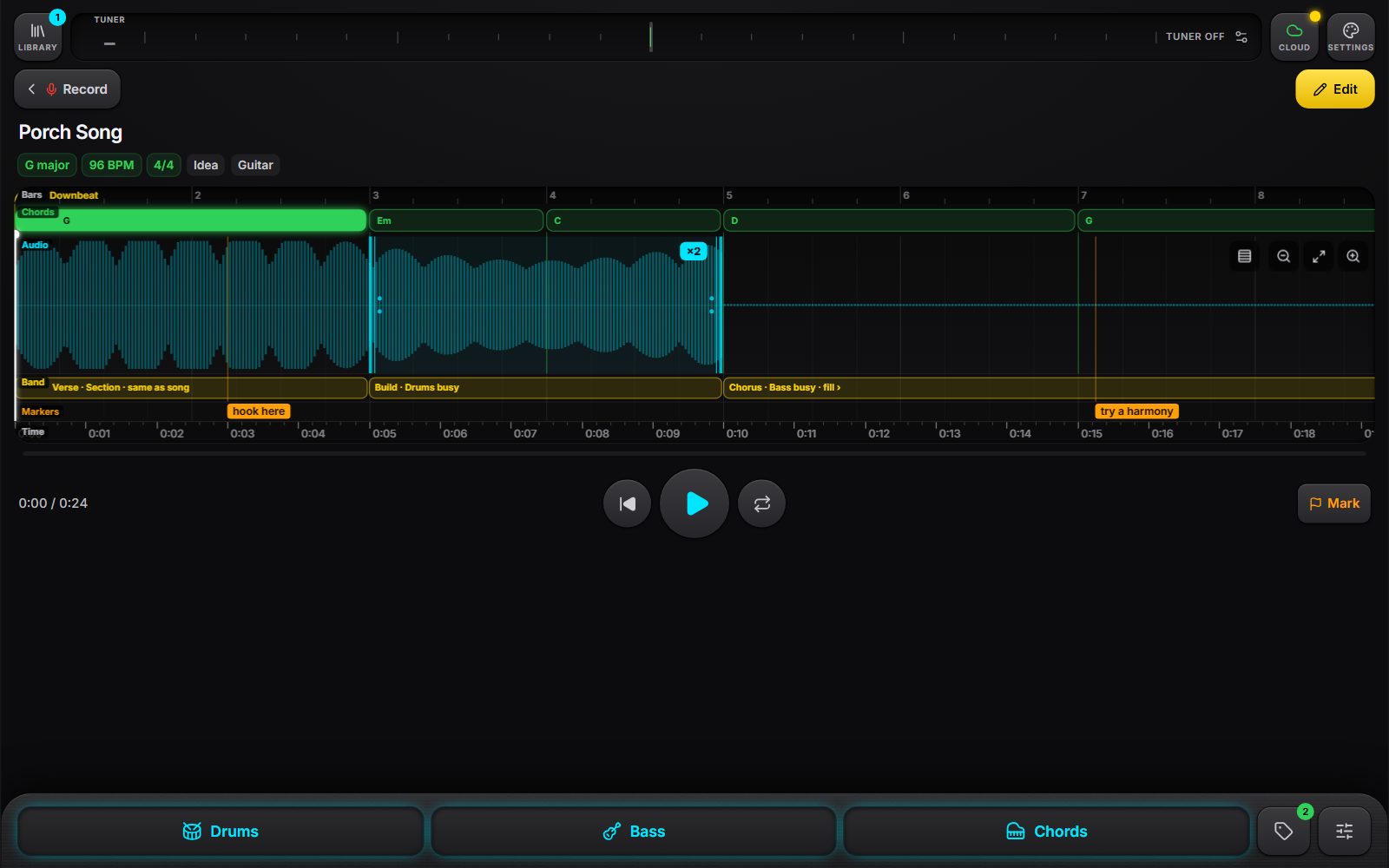
- The timeline shows, top to bottom: the Bars (with faint beat ticks), the Chords, the Audio, the band's Sections, your Markers and the Time.
- Tap the waveform to move the playhead; tap a marker to jump to it. Drag across the bar numbers to pick a region, to play just those bars (with Loop on, over and over).
- Bars that repeat show between repeat signs with a ×2 badge, which counts 1/2, 2/2 as it plays.
- Drums, Bass and Chords switch the band's parts on and off for this idea. "Some sections active" means a part is off for the song but some sections play it.
- Mark drops a marker at the playhead. Edit opens the editor.
The editor
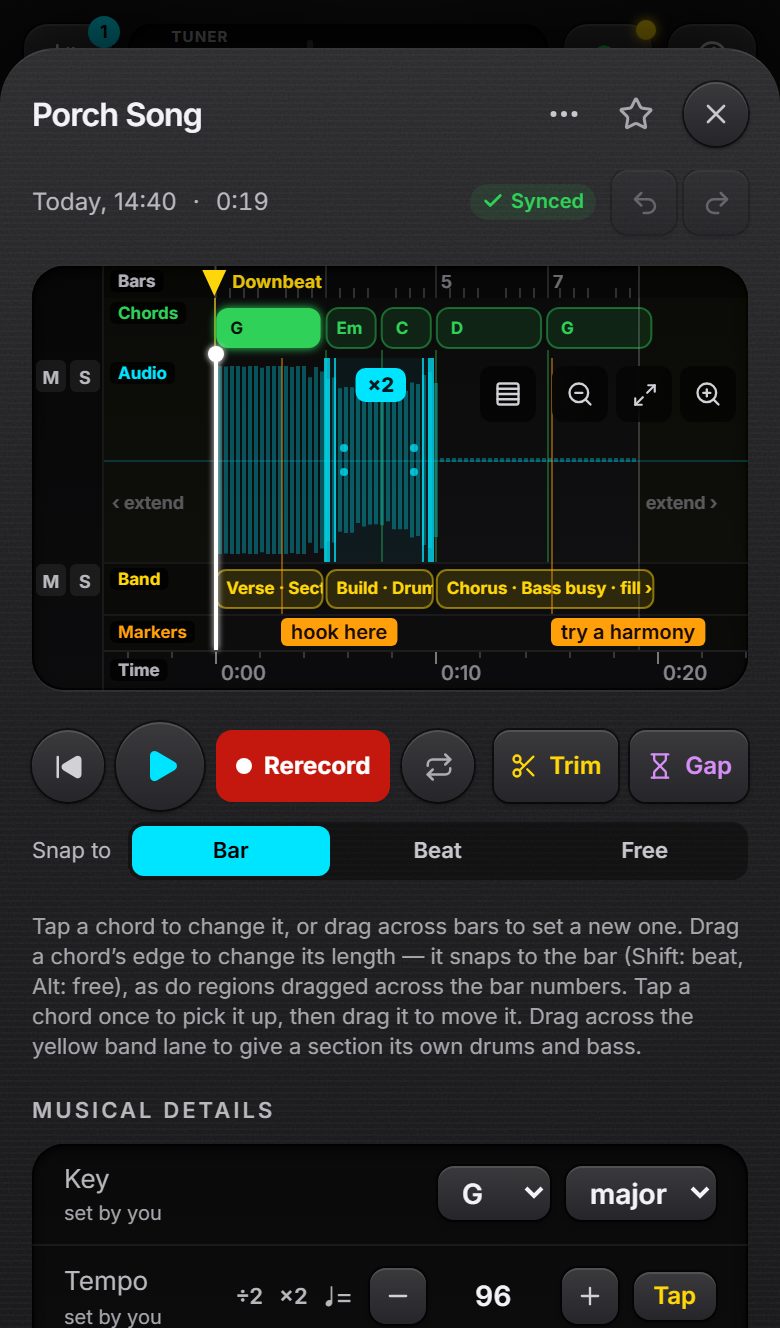
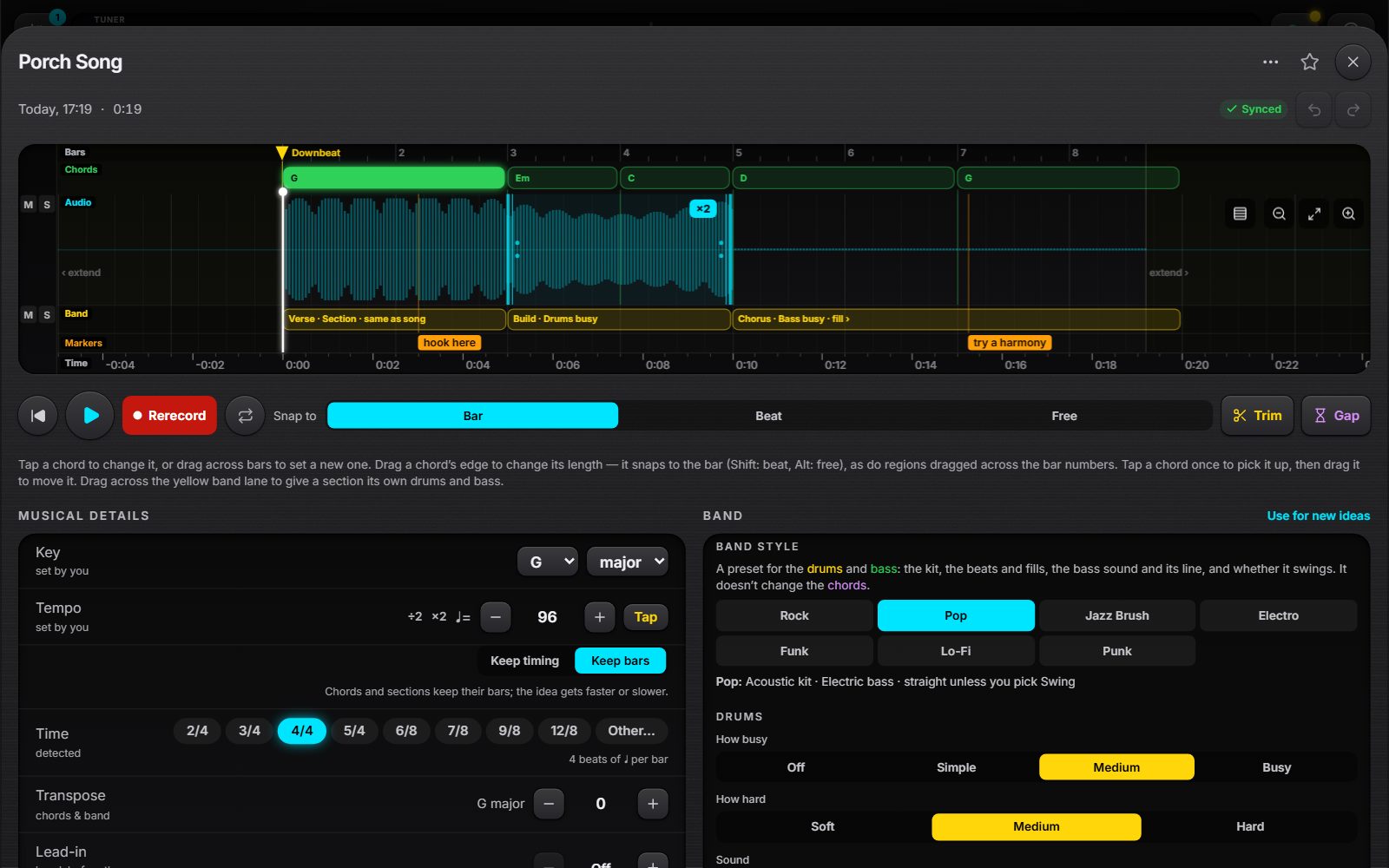
- At the top: where the idea is saved (Synced, Changes pending, Sync now), and Undo and Redo for every edit, kept even after closing the app.
- M and S mute or solo the recording and each part of the band.
- Trim cuts the start and end of the recording; Gap inserts a silence at the playhead (the recording is never cut, so you can change it later).
- Snap to sets what dragging chords, sections and regions lines up to: the Bar, the Beat (the eighths, in 6/8) or nowhere (Free).
- Advanced editing (Settings › Editor) adds the band lane, the downbeat, the mix, surround and history.
Chords
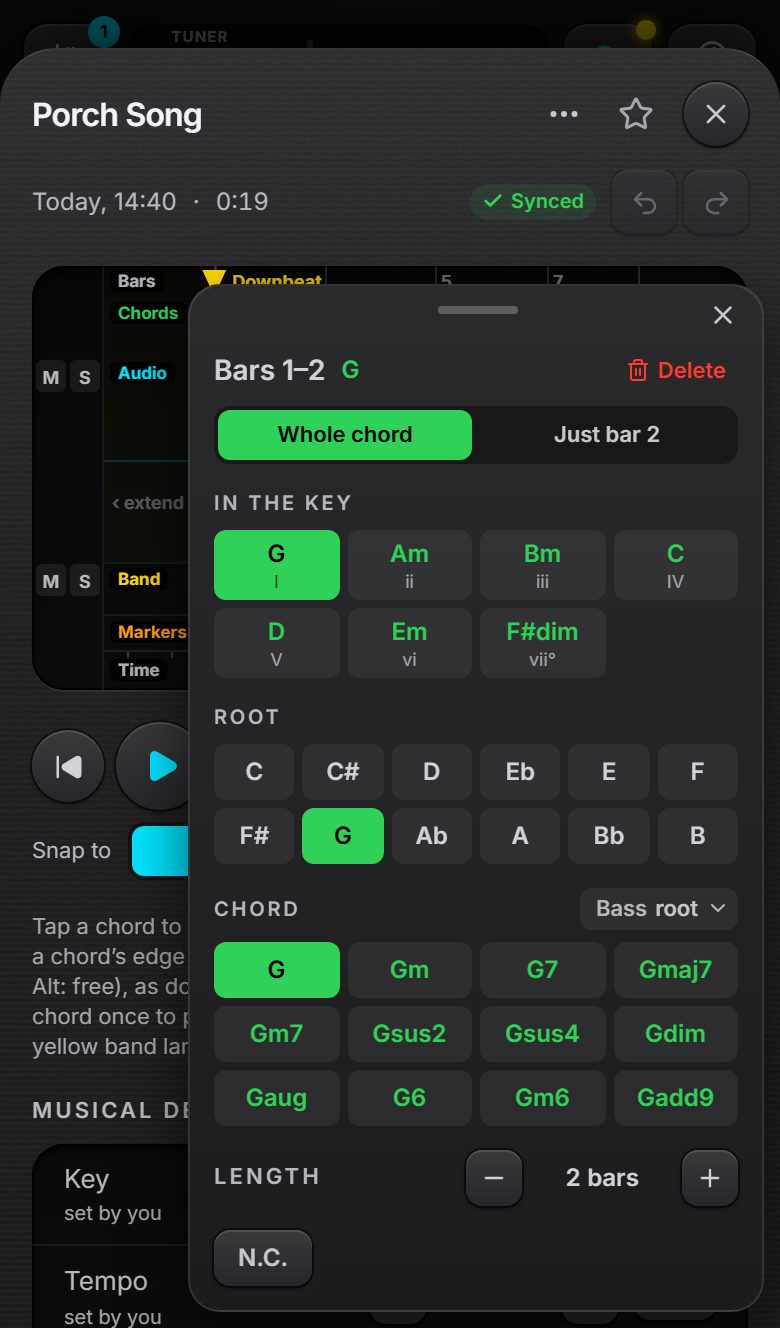
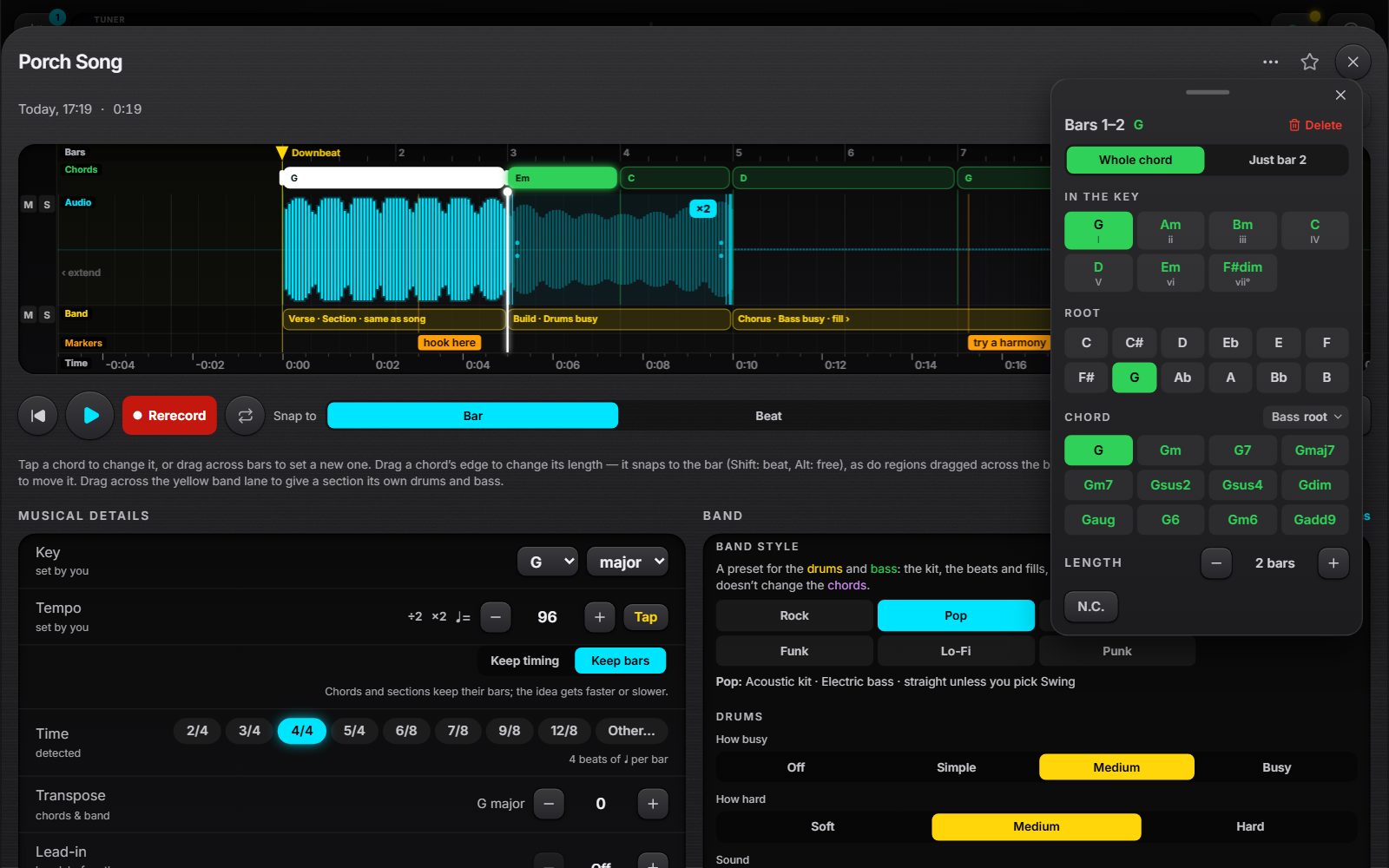
- Tap a chord to change it, for the whole chord or just one bar of it. In the key offers the likely chords first; Root and Chord pick any other.
- Length grows or shrinks it a bar at a time. N.C. means no chord there.
- Drag across the chords lane to set a chord for exactly those bars, or drag a chord's edge. Tap a chord once to pick it up, then drag it to move it.
Regions and loops
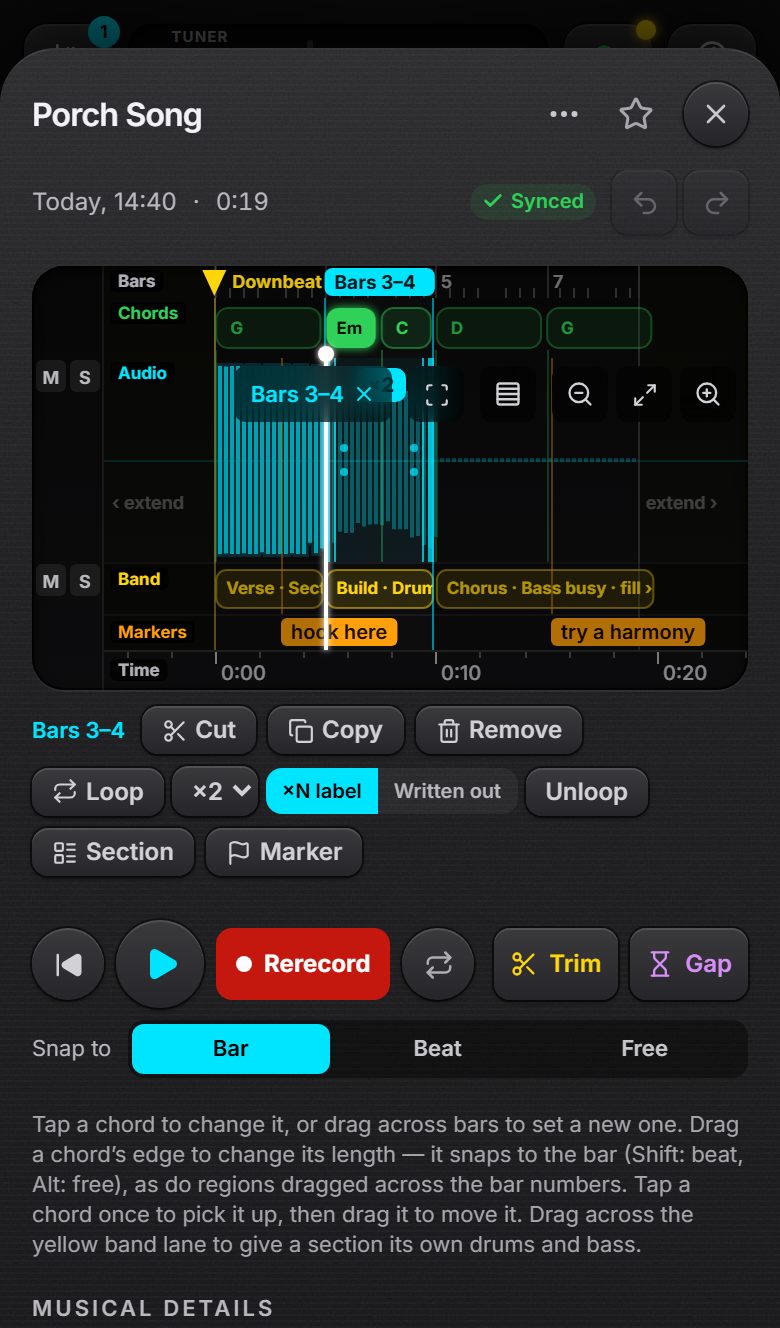
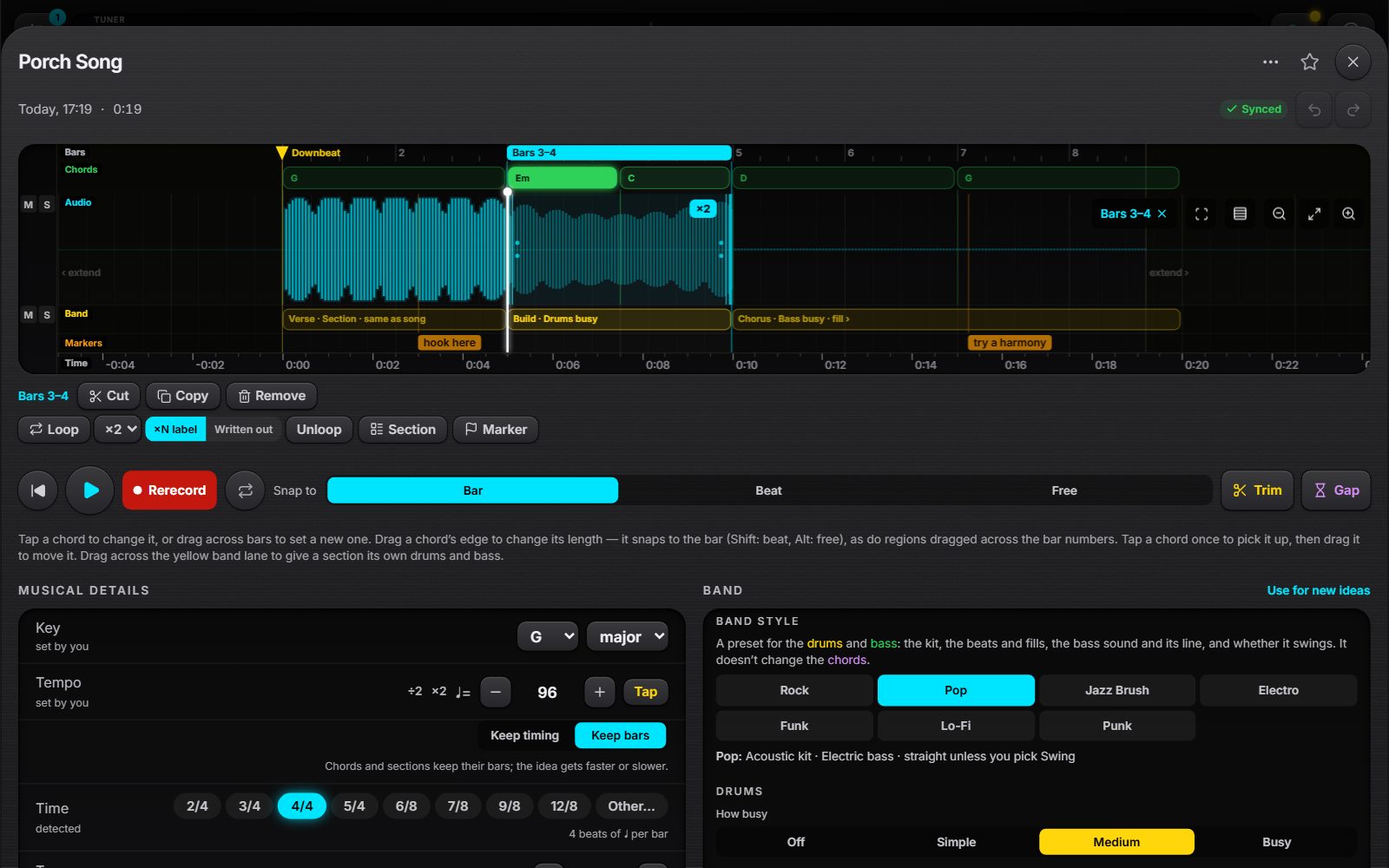
- Drag across the bar numbers to pick a region; tap a bar number for one bar, and tap inside the region to clear it.
- Cut, Copy and paste move bars about, with their chords and sections. Remove takes them out and closes up.
- Loop plays the bars ×2 to ×16. As a ×N label, they show once with repeat signs; Written out copies them into the song. Unloop takes a loop off.
- Section makes a band section of exactly those bars; Marker puts a marker at their start.
- Regions can take in the bars the band plays after the recording (play-on), for a long instrumental outro.
Sections
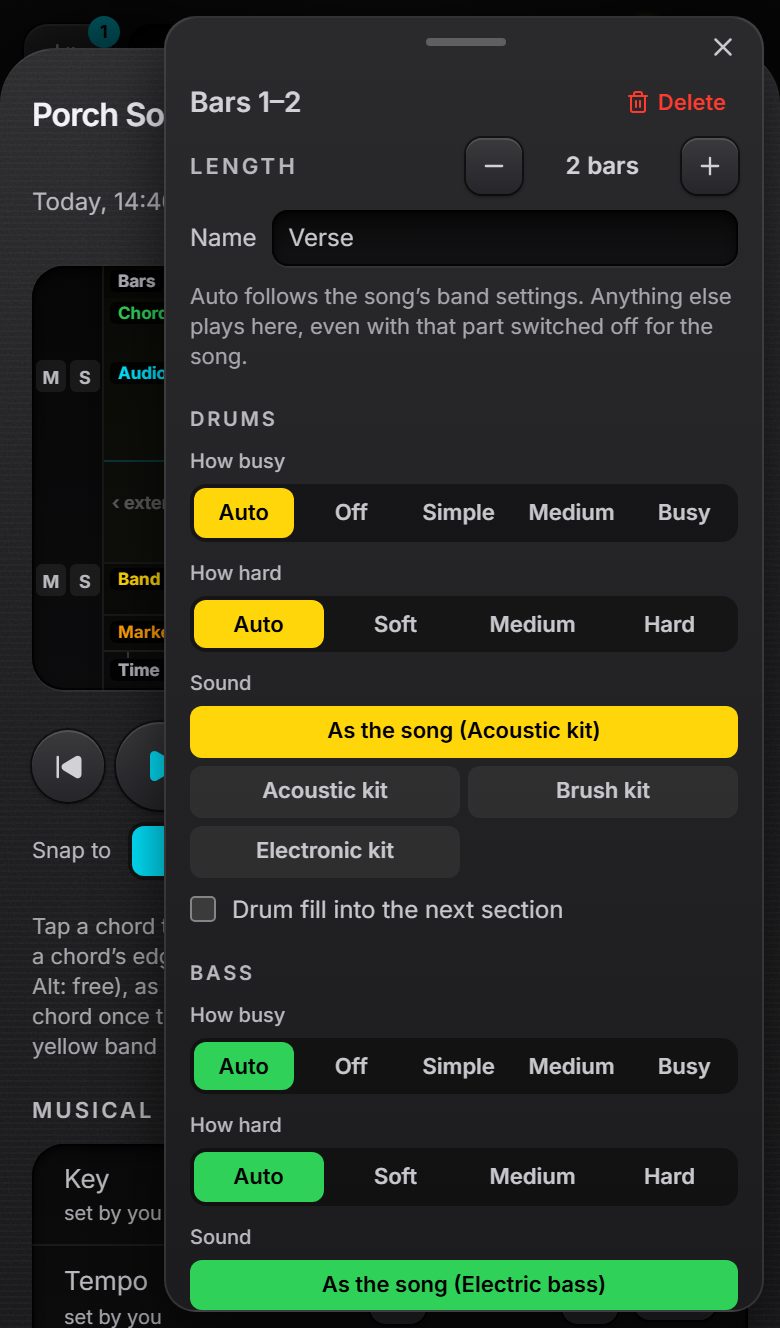
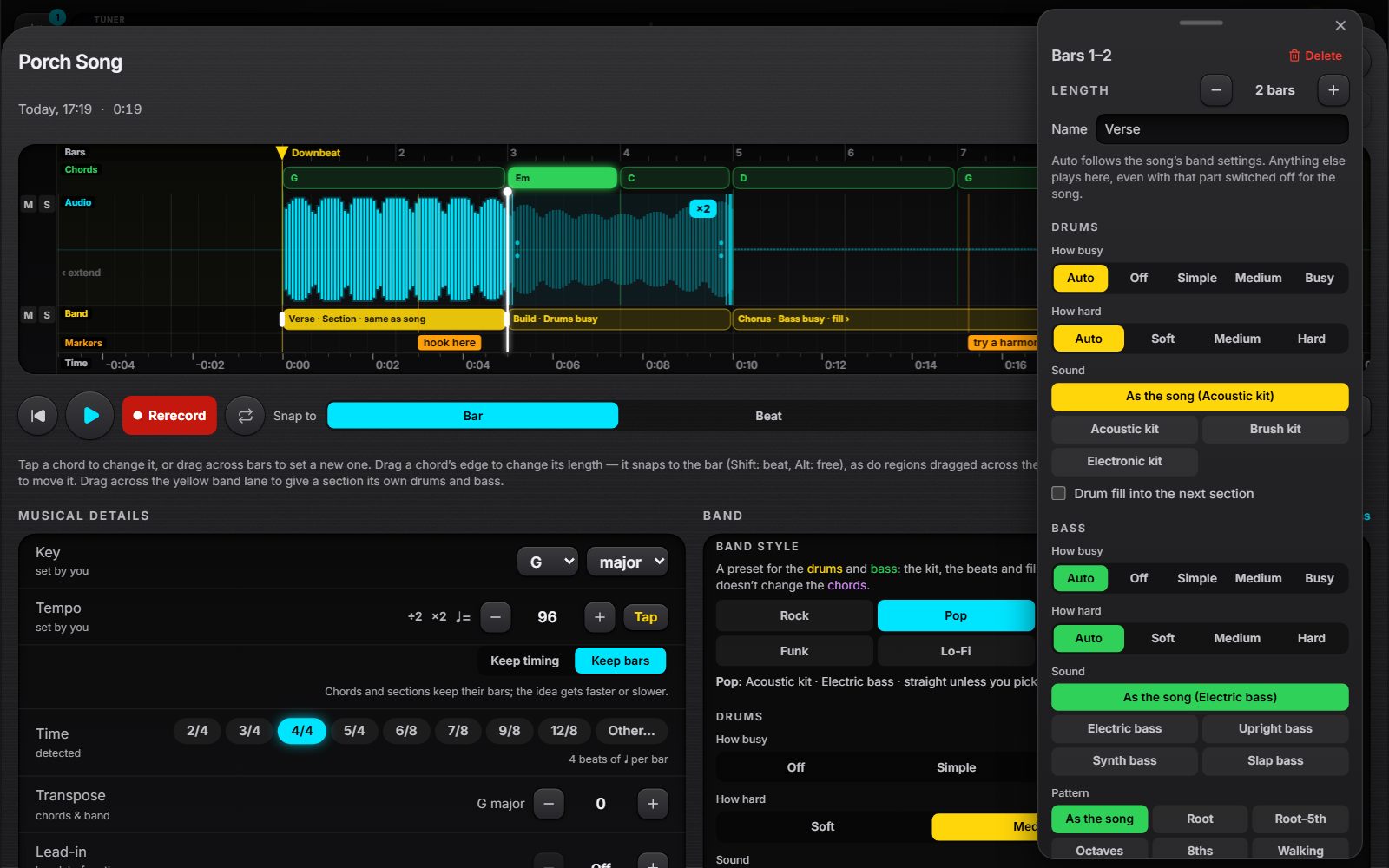
- A section changes the band for just some bars: no drums in the intro, driving drums in the chorus, a walking bass in the bridge.
- Give it a name: it shows before what it does, as in "Chorus · Bass busy".
- Auto follows the song's band settings. Anything else plays there, even with that part switched off for the song.
- Each part has How busy (the pattern), How hard (how hard it's played) and its Sound; the bass has a pattern and can go up an octave; the drums can fill into the next section. Levels, effects and placement fold away underneath.
Musical details
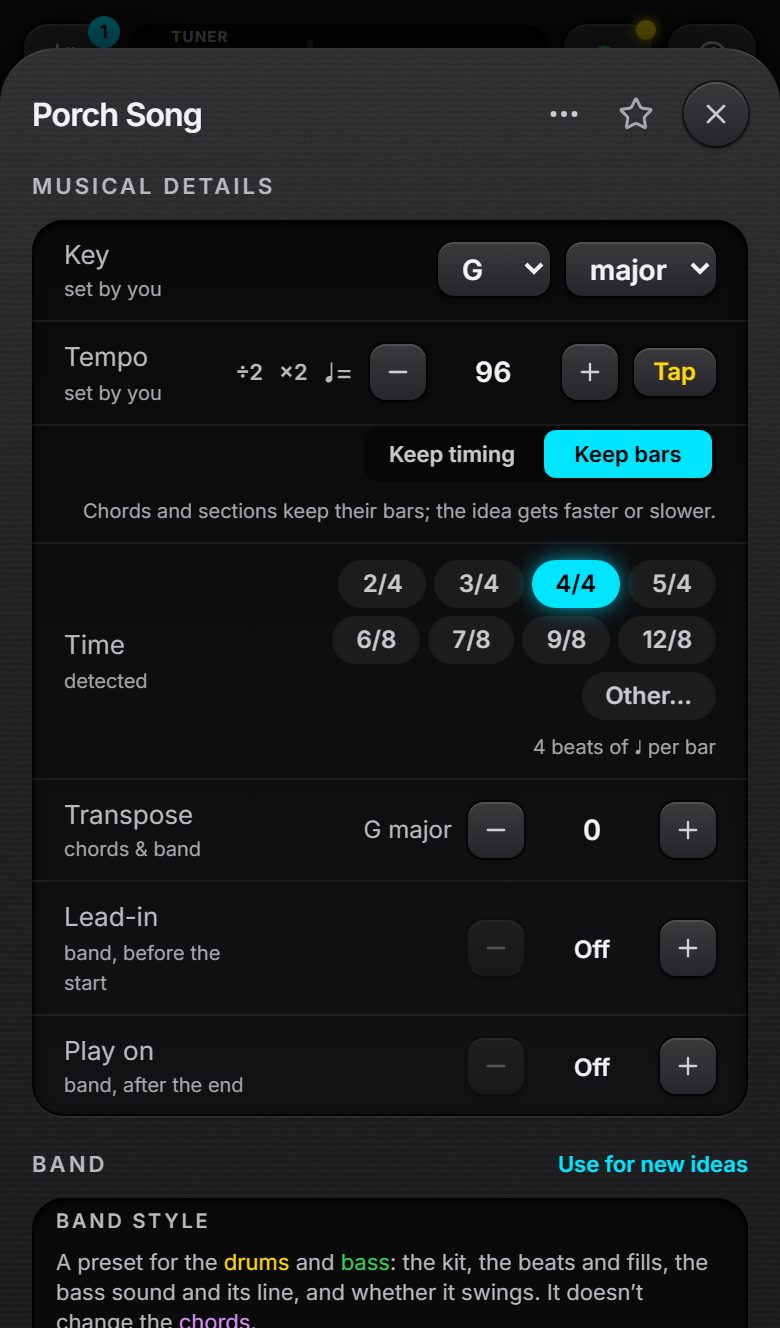
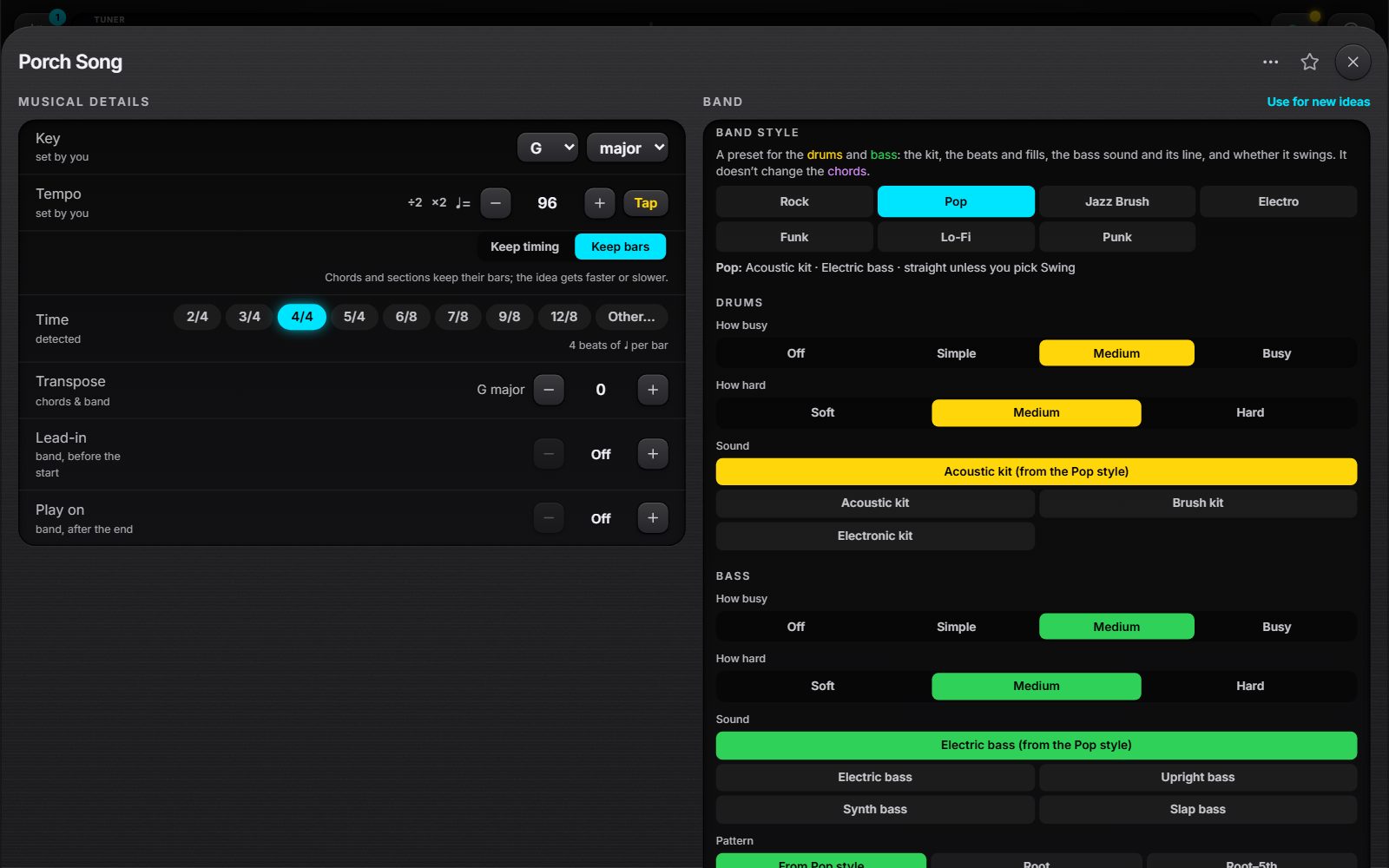
- Key and Tempo are detected; anything you set stays "set by you" when detection runs again. Tap tempo, ×2 and ÷2 fix most tempo problems.
- Changing the tempo either keeps the bars (the idea speeds up or slows down) or keeps the timing.
- Time sets the time signature, odd ones included (7/8 grouped as players count it).
- Transpose moves the chords and band. Lead-in and Play on add bars for the band before and after the recording.
The band
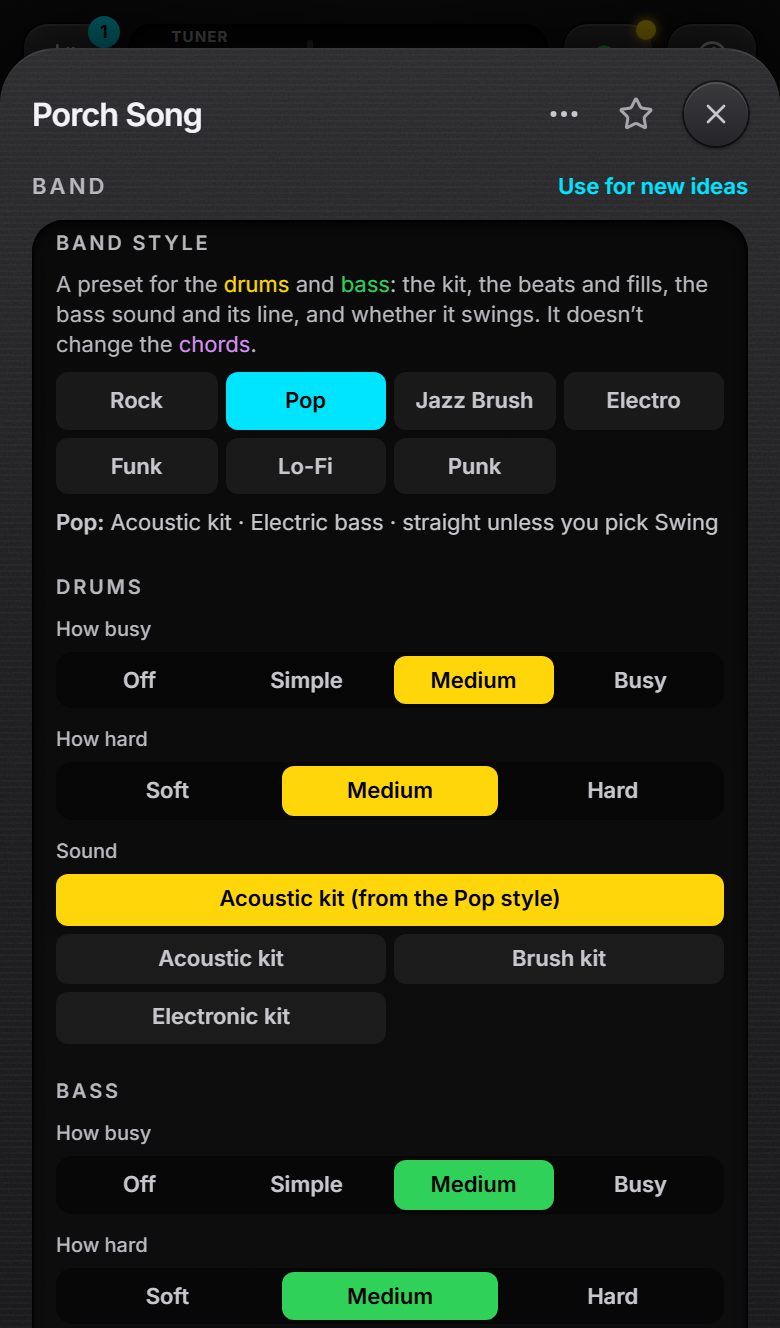
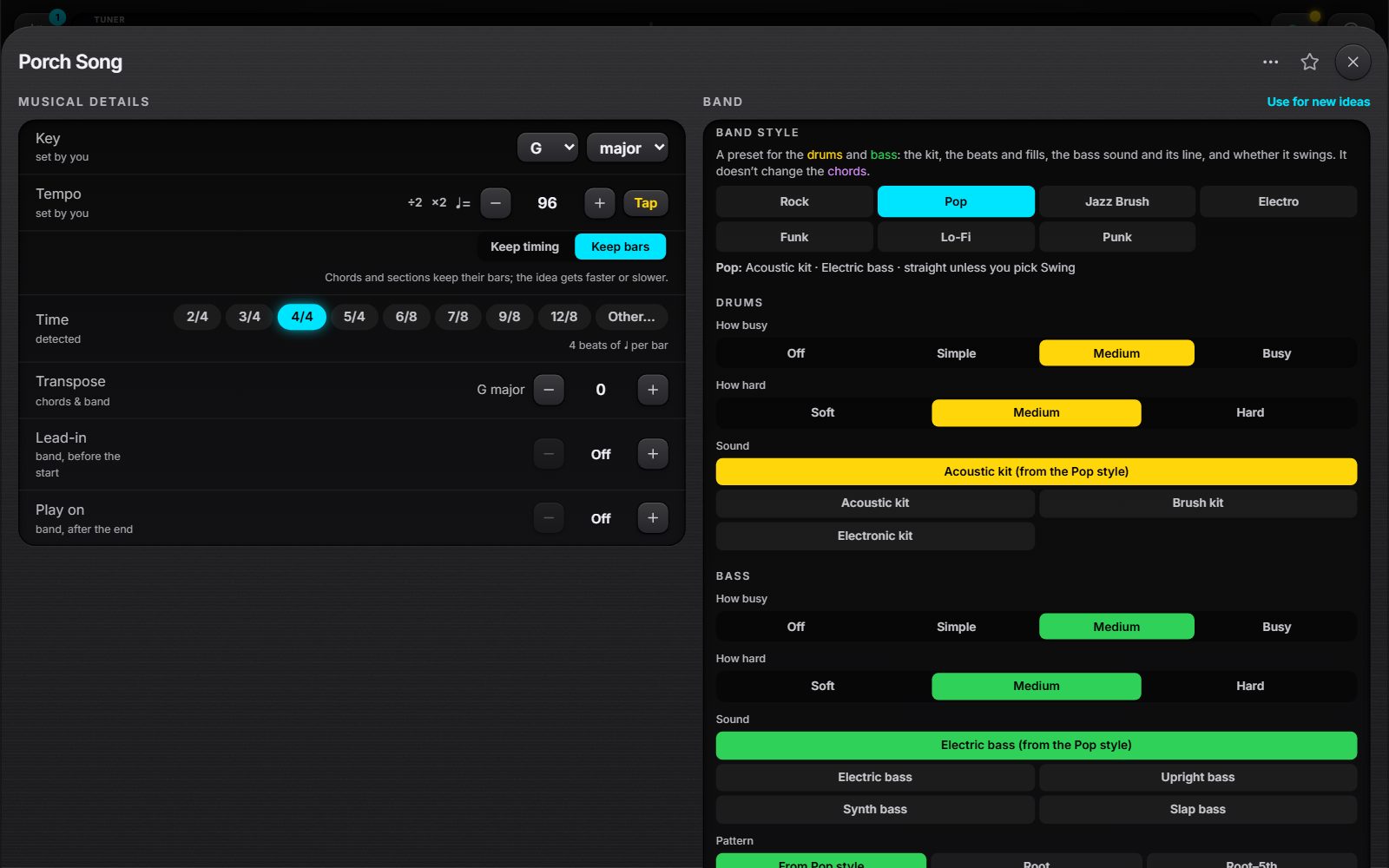
- Band style is a preset for the drums and bass: Rock, Pop, Jazz Brush, Electro, Funk, Lo-Fi or Punk. It says what it gives you, and leaves the chords alone.
- Each part has How busy, How hard and its Sound (the style's own first, then every kit or bass to pick instead). The bass has a Pattern; the chords a sound, how they're played and their voicing.
- Then the feel (half time, double time or swing) and a count-in.
- Use for new ideas makes this band the one new ideas start with.
Markers
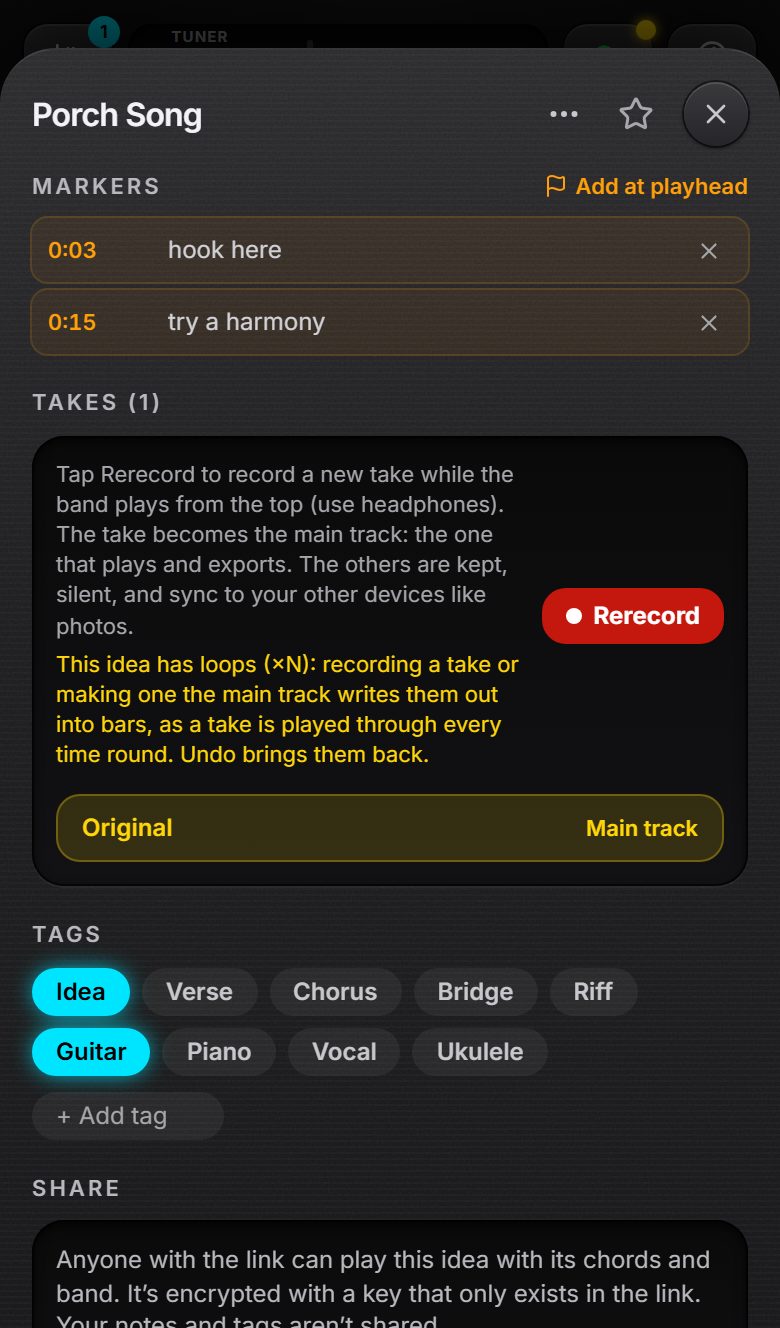
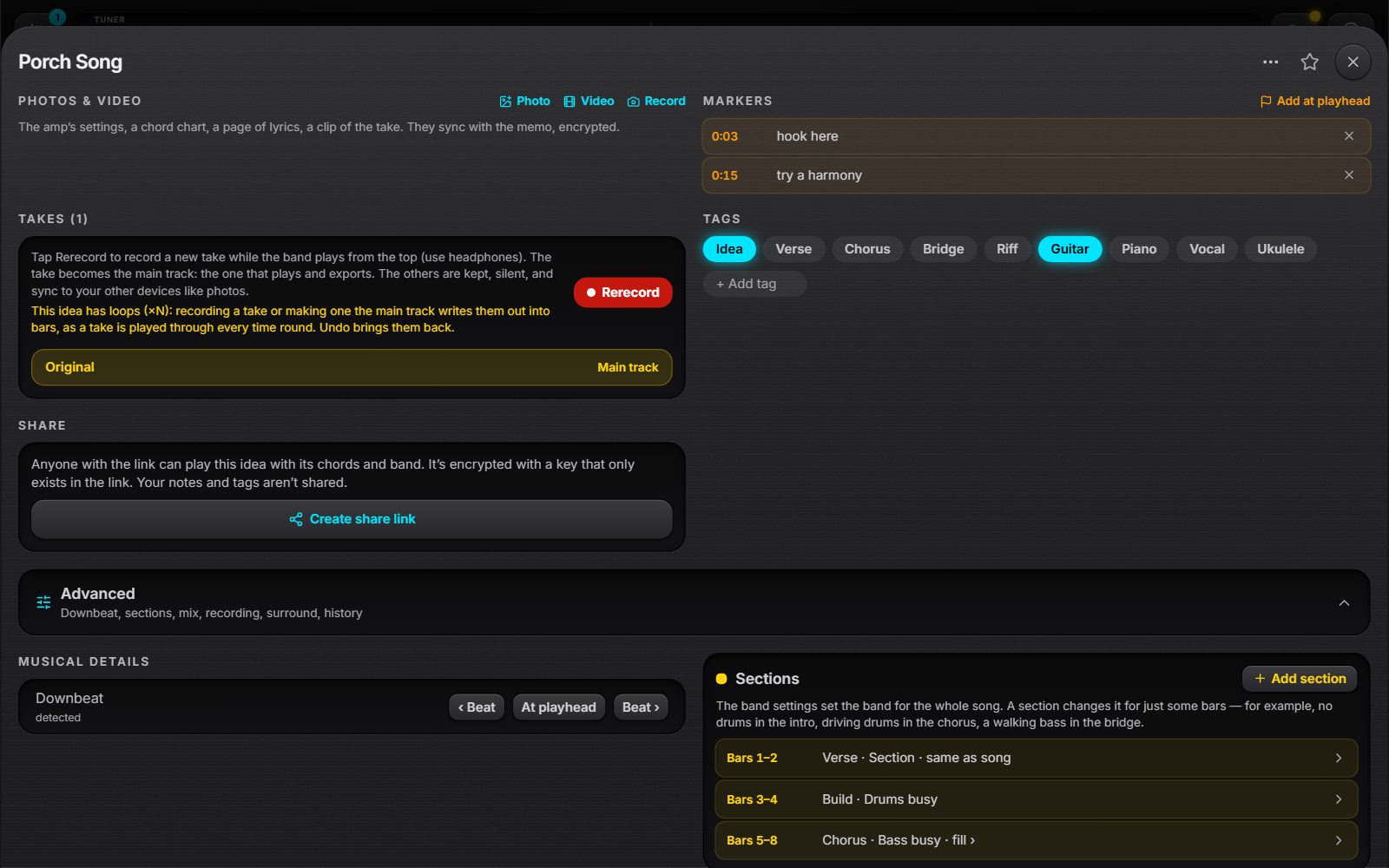
- Markers flag moments: drop one while recording or playing (Mark, or M), or with Add at playhead.
- Name a marker here; tap its time to jump to it, and ✕ to remove it.
- They show in the timeline's own Markers lane, and move with cuts, pastes and trims.
Takes and Rerecord
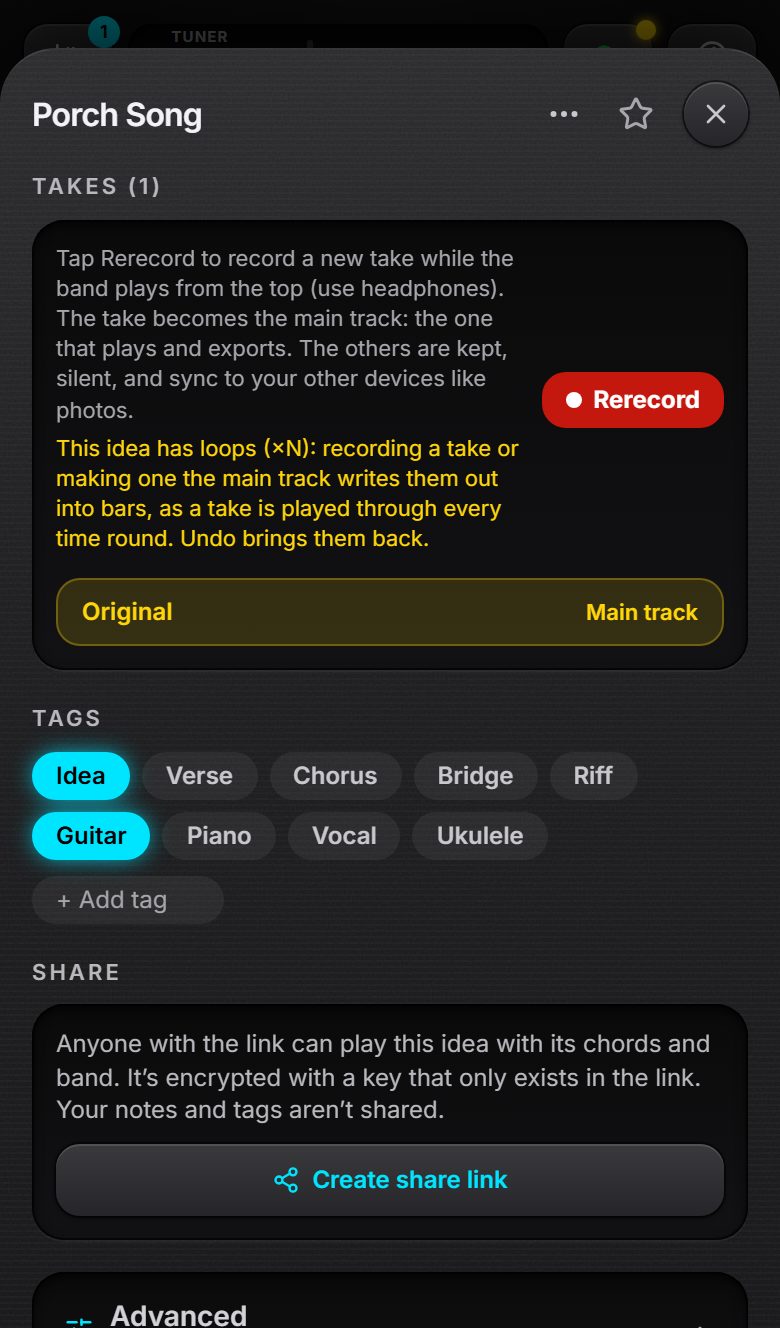
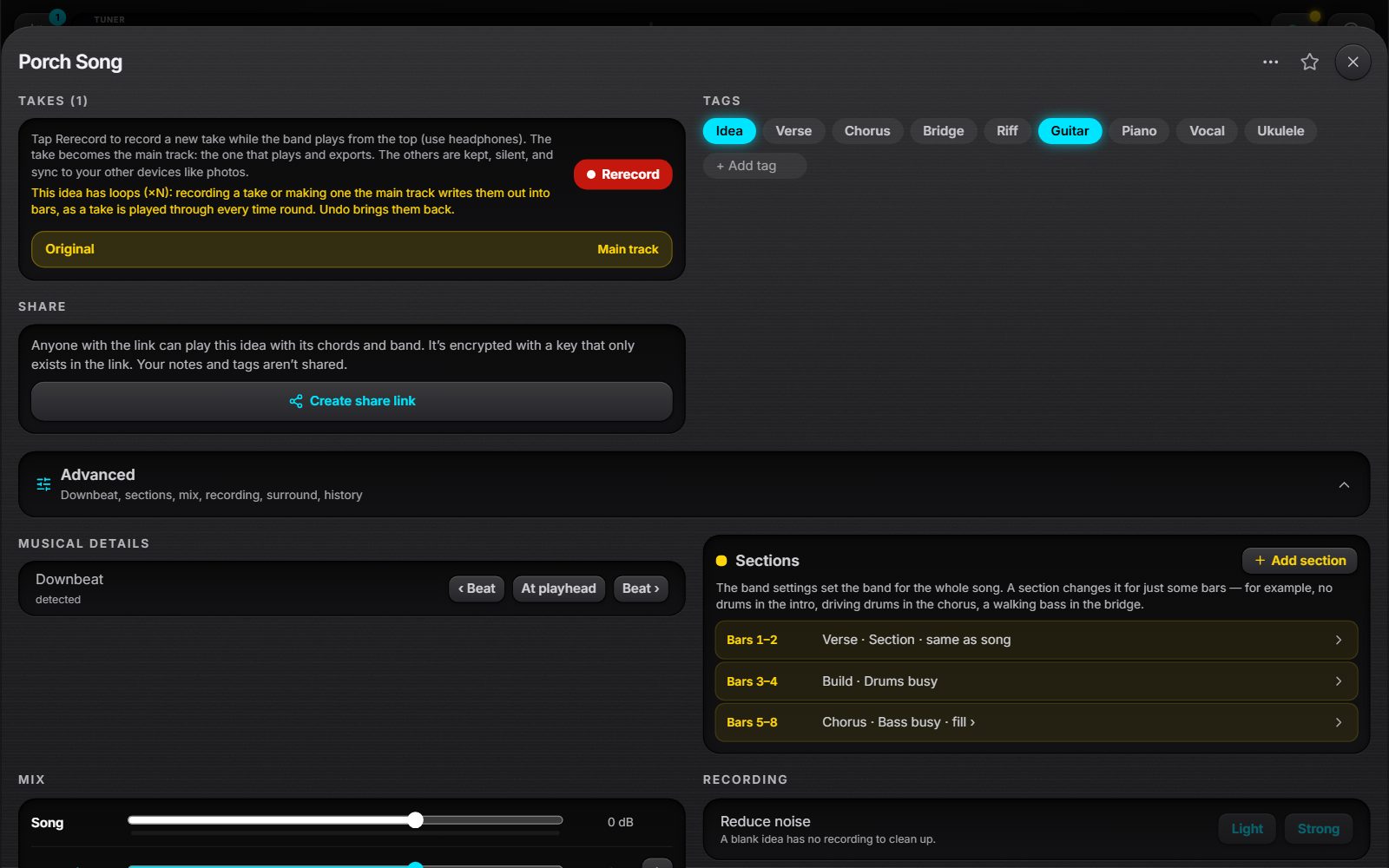
- Rerecord records a better take while the band plays the idea. The new take becomes the main track: the one that plays, exports and shares.
- The others stay in Takes, silent: Make main track swaps one back at any time. Takes sync to your other devices like photos.
- An idea with loops has them written out into bars first, as a take is played through every time round. Undo brings them back.
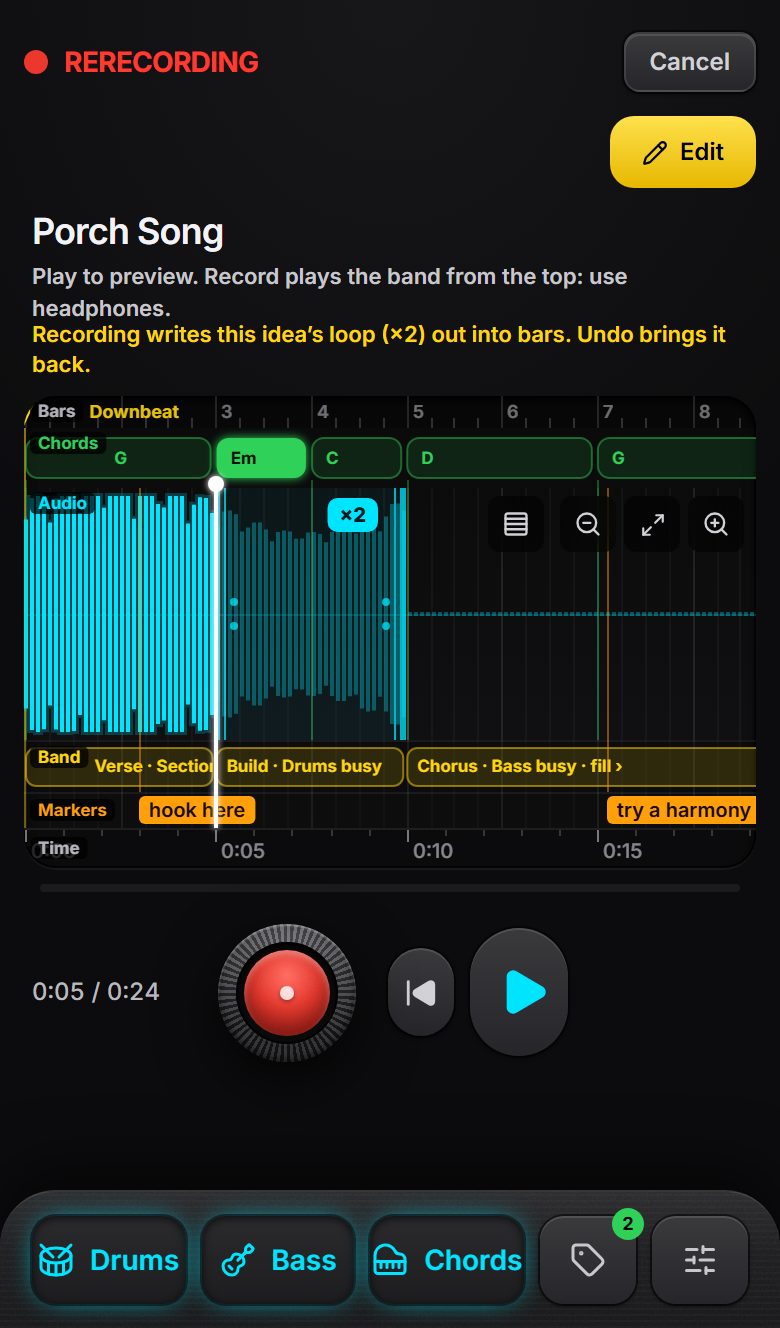
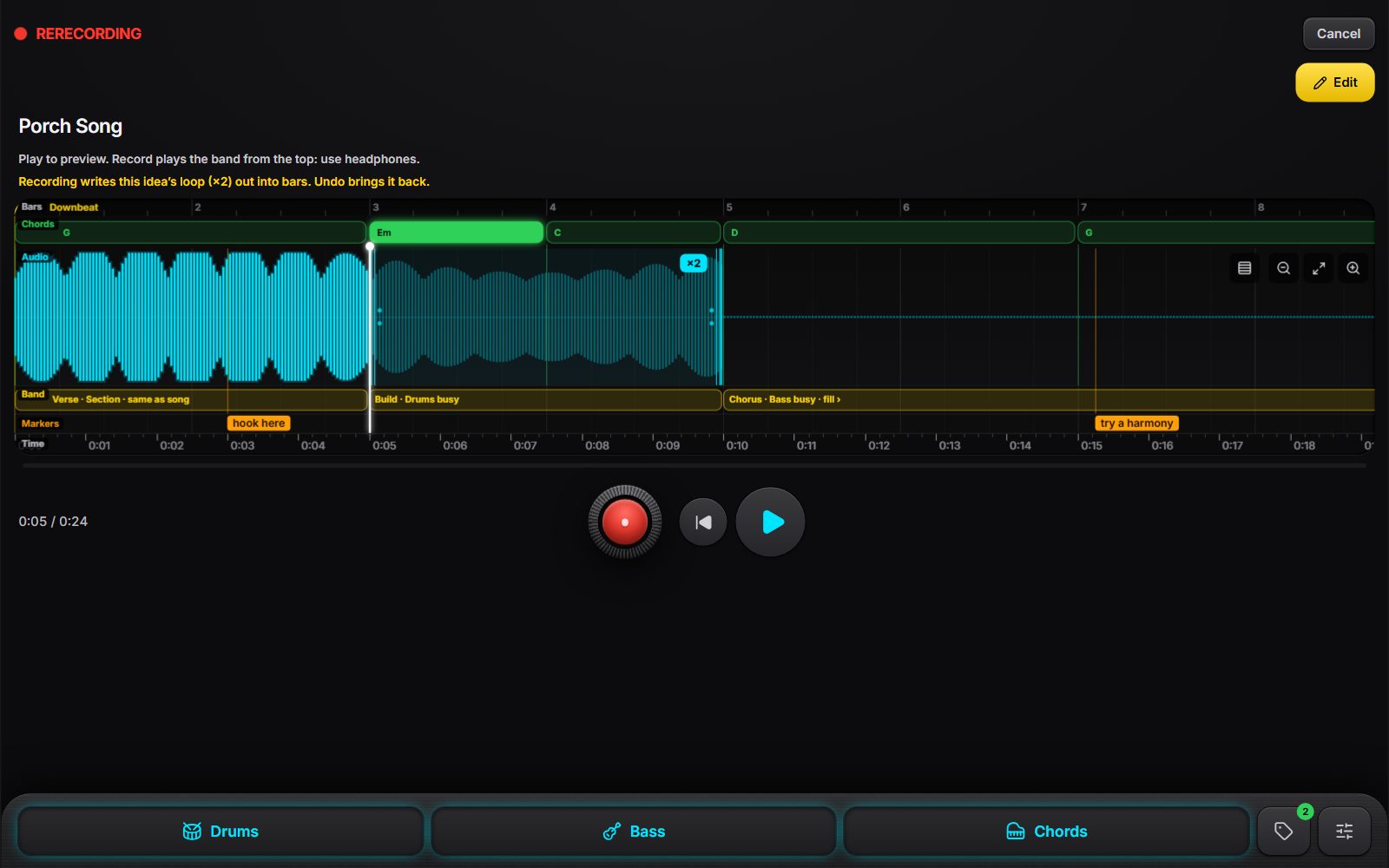
- Rerecording happens in the player, so you can see the chords and sections coming. Play previews the idea; Edit changes chords or sections first.
- The record button counts in a bar, then plays the band from the top while you record. Use headphones, or the mic hears the band.
- The take is lined up with the bars, the delay of your headphones and mic taken off. If takes sound early or late, test the delay in Settings › Rerecord timing.
- The take stops at the end of the song, or when you tap stop. Cancel leaves Rerecord.
Tuner and tools
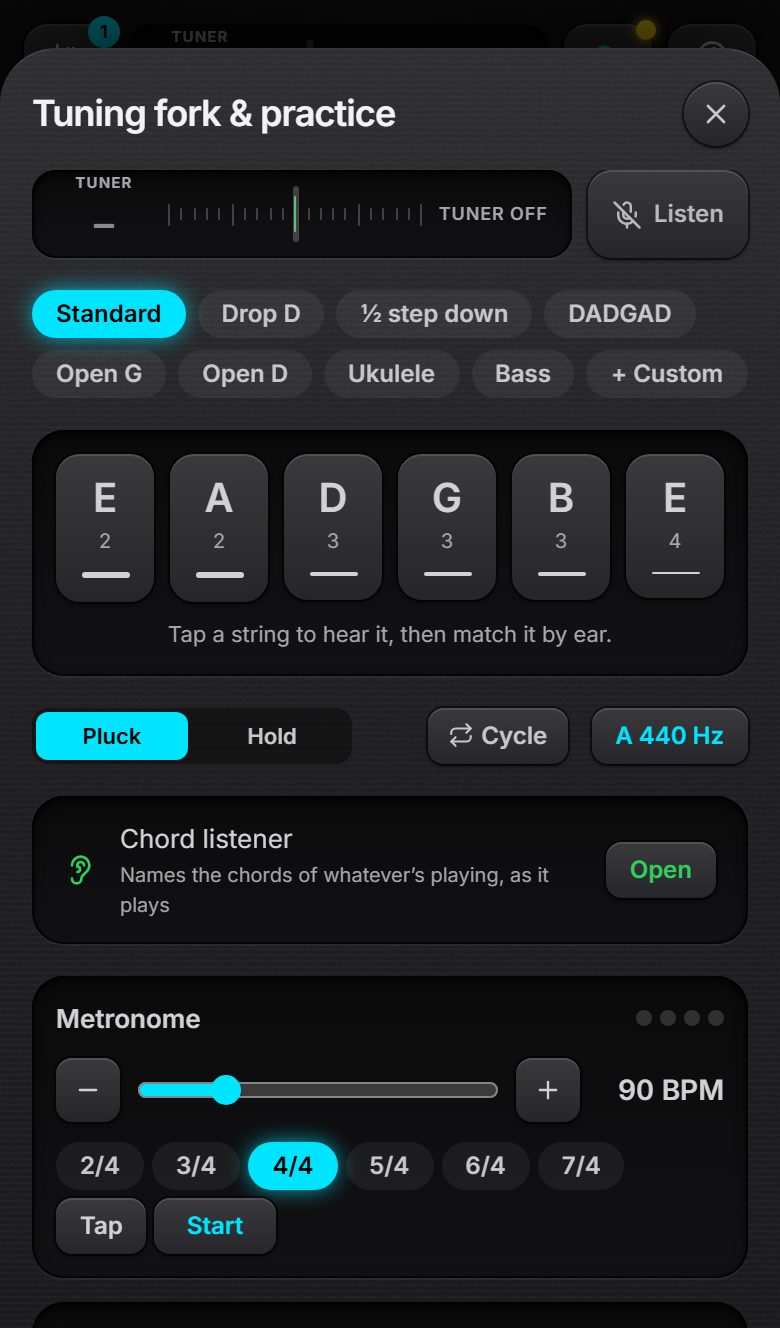
- With the mic on, the strip at the top is a tuner: Tuner on while it listens, the note and how many cents out once it hears one.
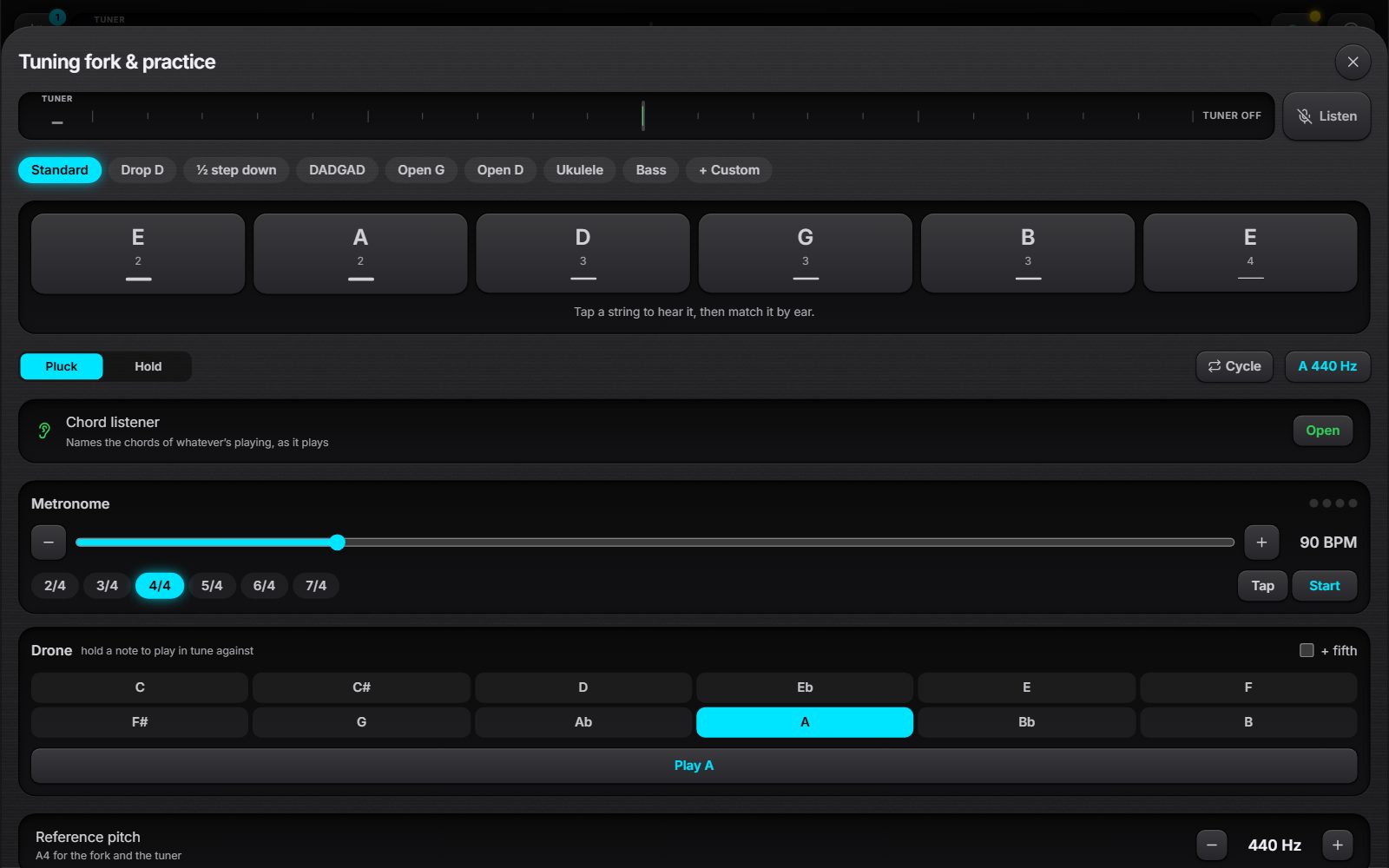
- Tap it for the tuning fork: every string of standard and alternate tunings (and your own), with A anywhere from 432 to 446 Hz.
- A metronome with tap tempo, and a drone (pure tones, with an optional fifth) to practise against.
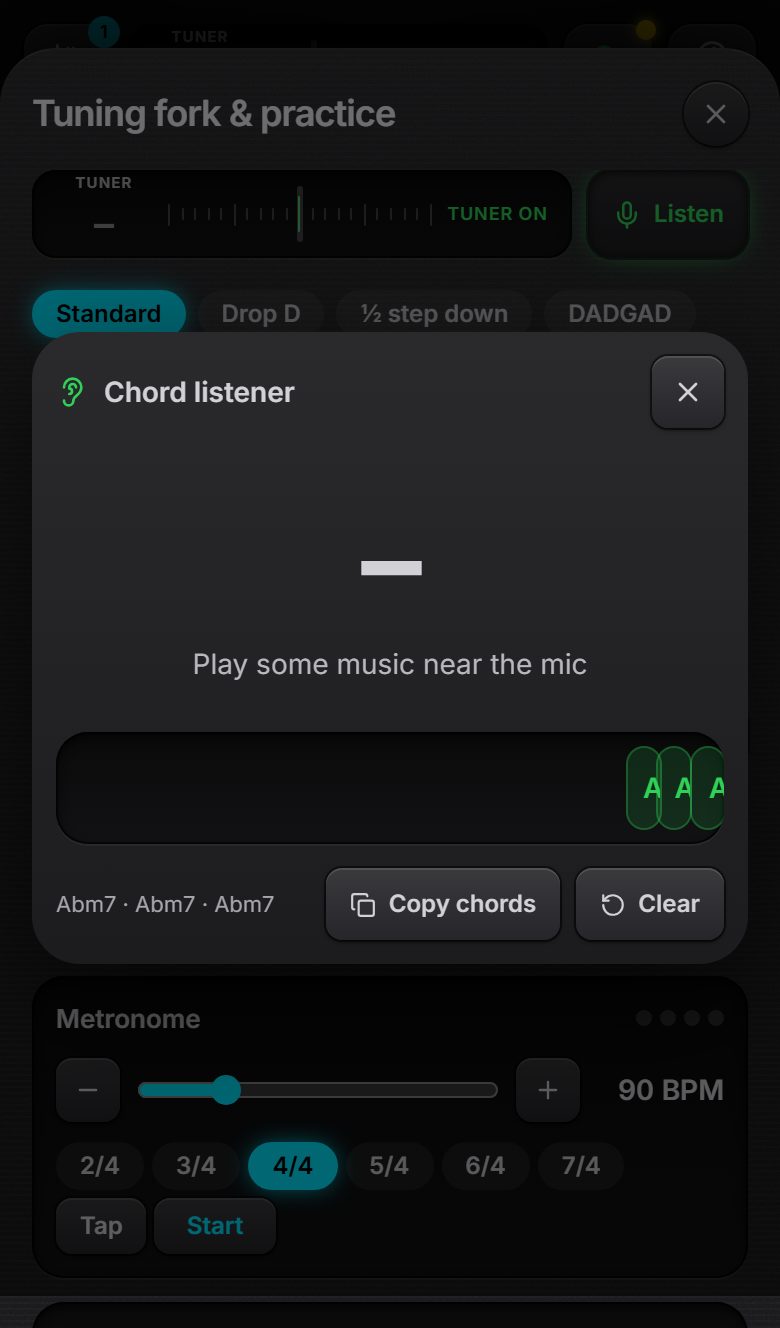
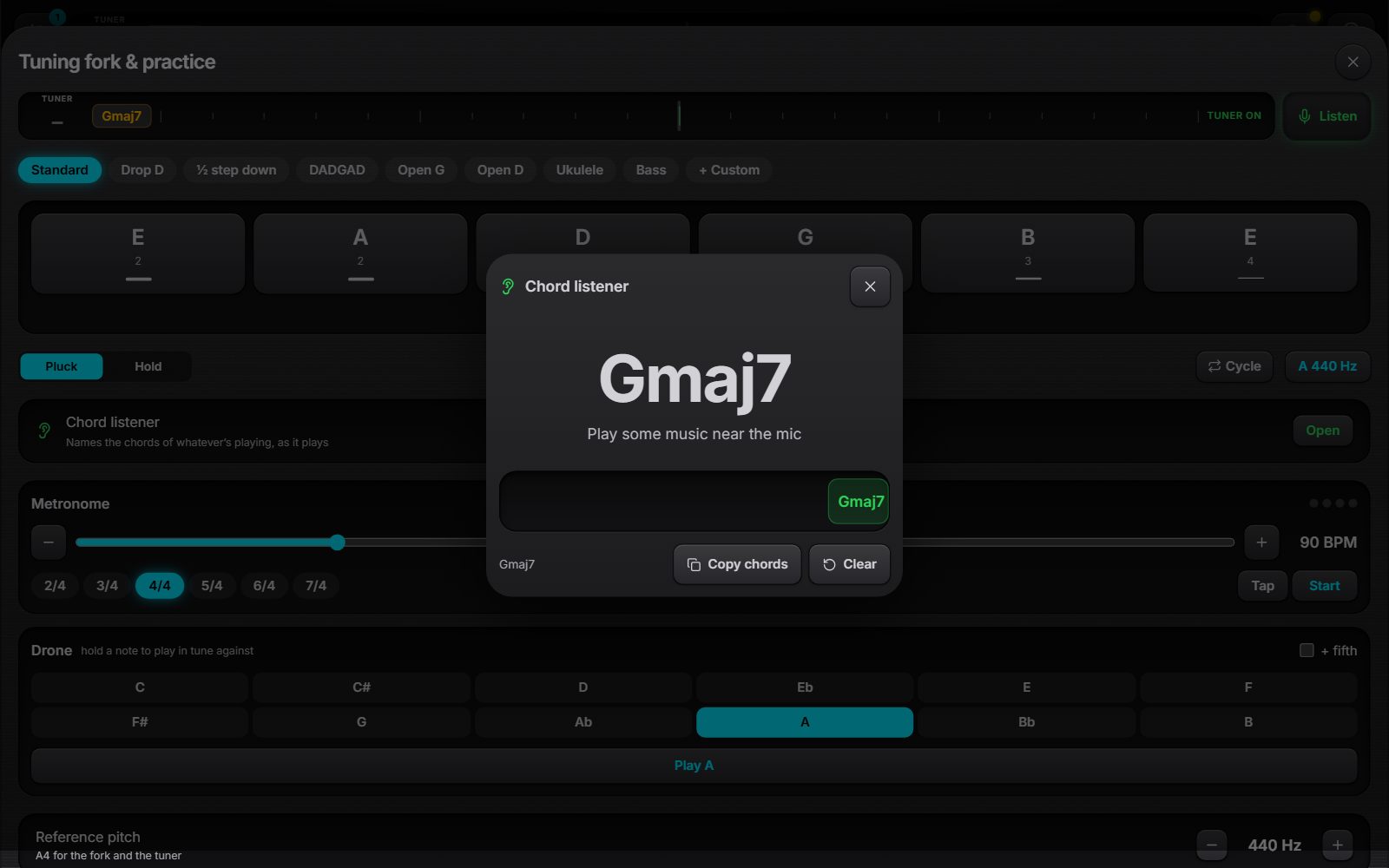
- Names the chords of whatever's playing near the mic: a record, a band, a friend's guitar.
- The current chord is shown large, with the key it sounds like and the last twenty seconds below.
- Copy chords copies them; Clear starts again. Tap outside the box to close it.
Settings
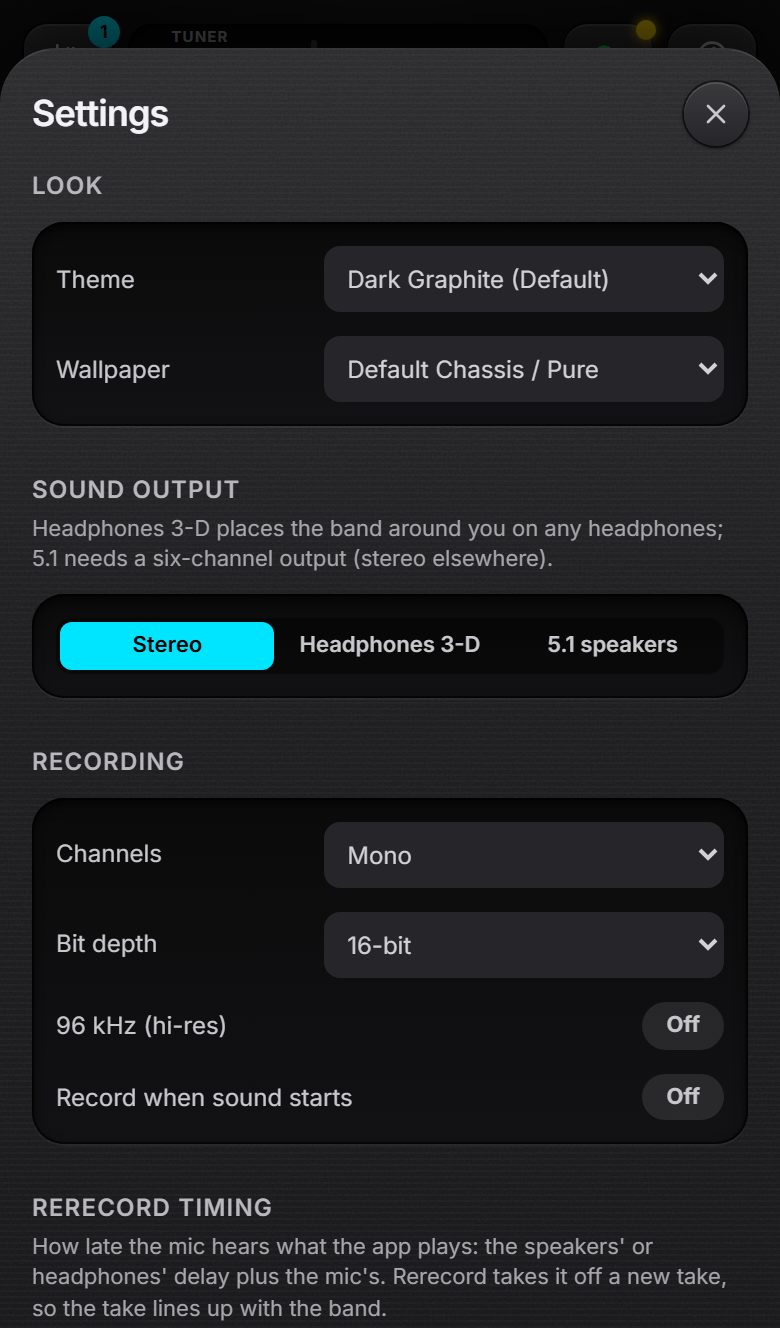
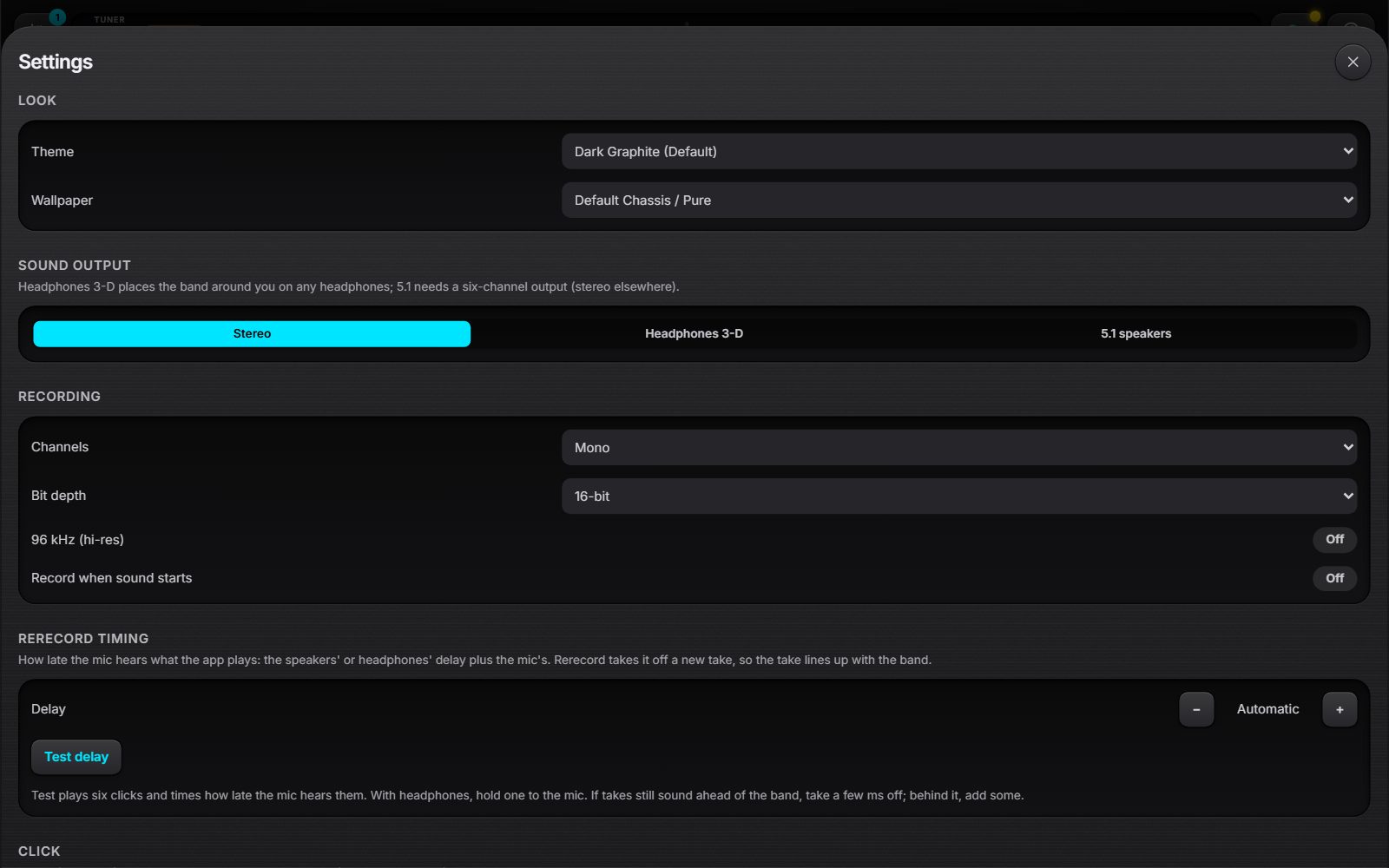
- Look: the theme and wallpaper.
- Sound output: stereo, headphones 3-D, or 5.1 speakers.
- Recording: channels, bit depth, 96 kHz and Auto; Rerecord timing tests your headphones' and mic's delay.
- Then the click, what new ideas start with (and their band), the tuner and the editor.
- Your settings sync with your library, so a device restored with your recovery code gets your setup back. Sound output, recording quality and Rerecord timing stay with each device.
Cloud and recovery
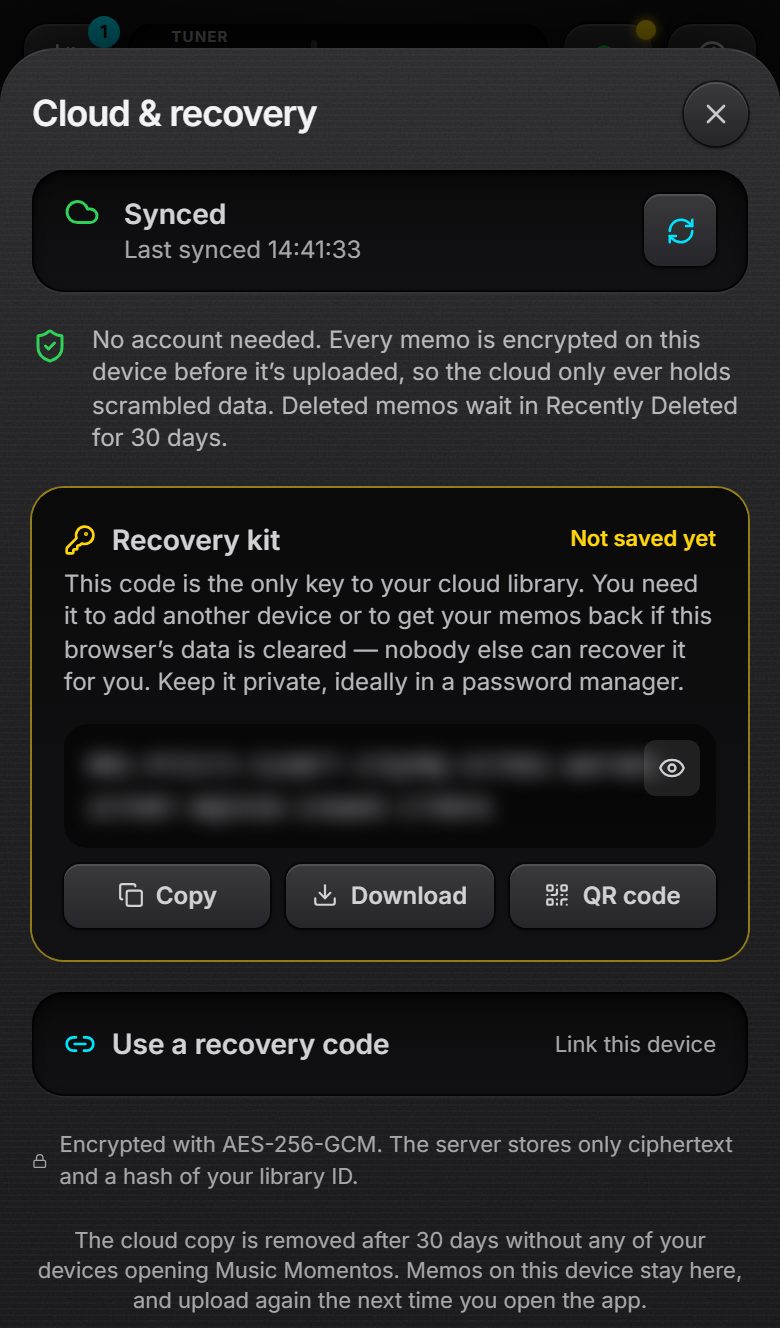
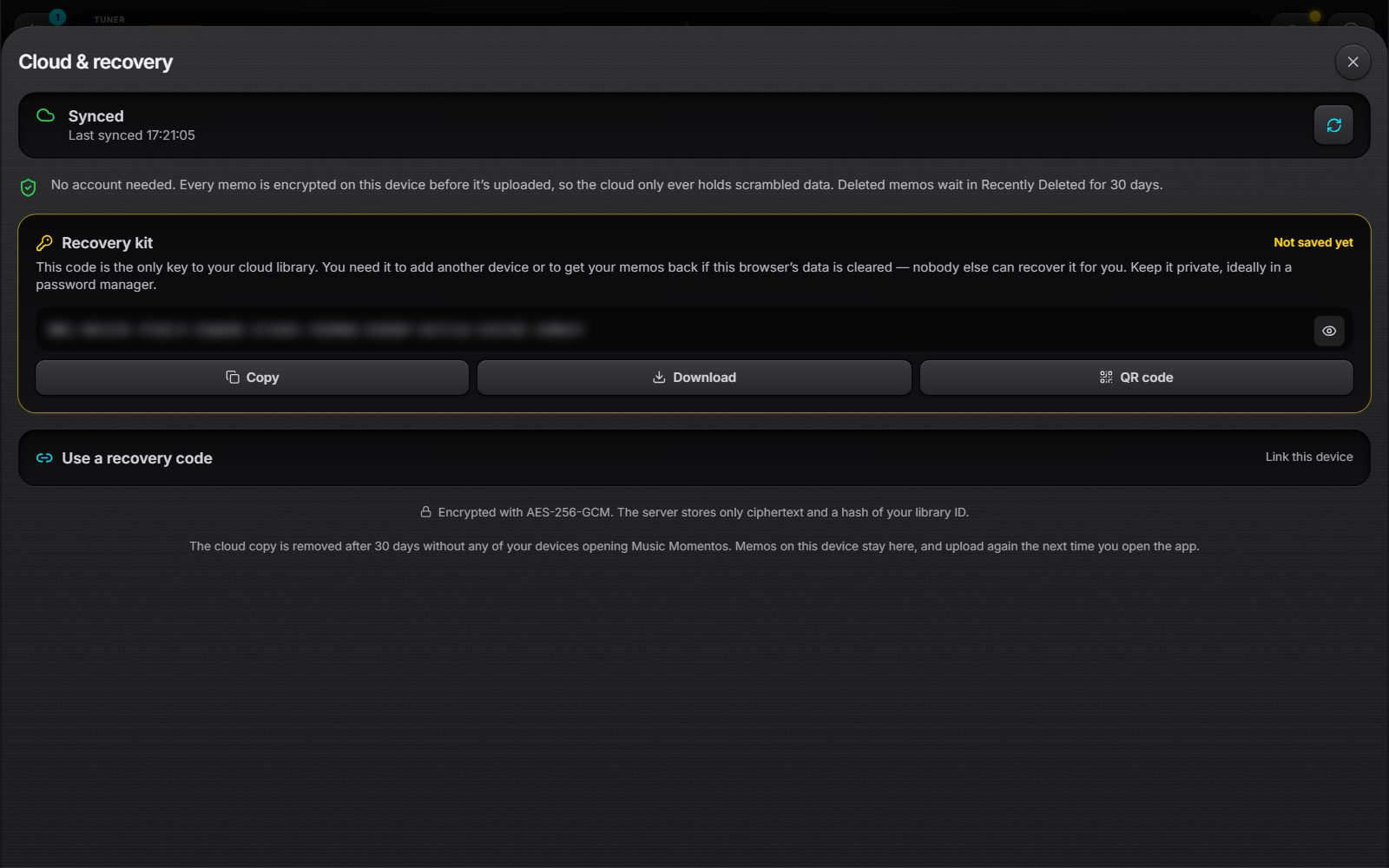
- Everything is encrypted on your device before it's uploaded: the cloud only ever holds scrambled data. There's no account.
- Your recovery code is the only key to your library. Save it (copy, download or QR code): without it, a cleared browser can't get its ideas back.
- Use a recovery code links another device to the same library: your ideas, their takes and your settings come with it.
- A library's cloud copy is deleted after 30 days without any device opening the app; the ideas on your devices stay, and upload again.
Sharing
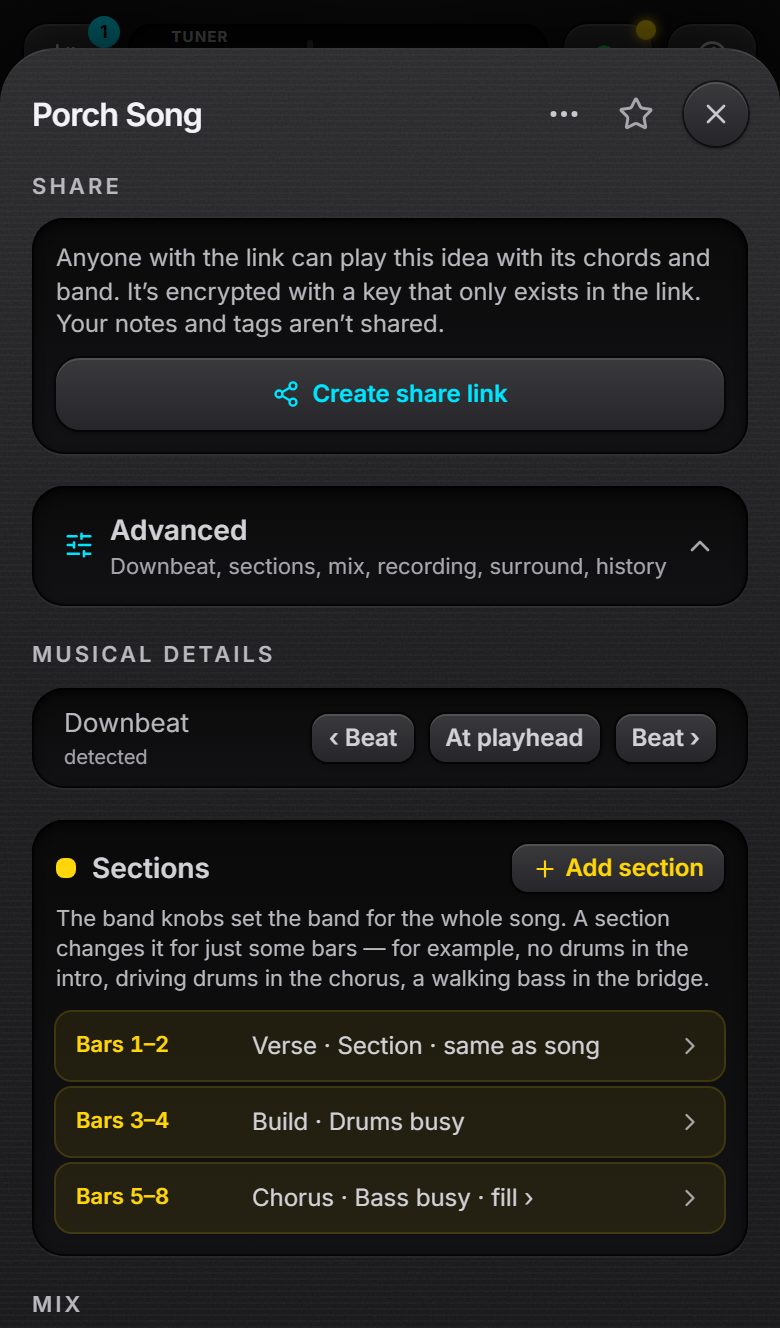
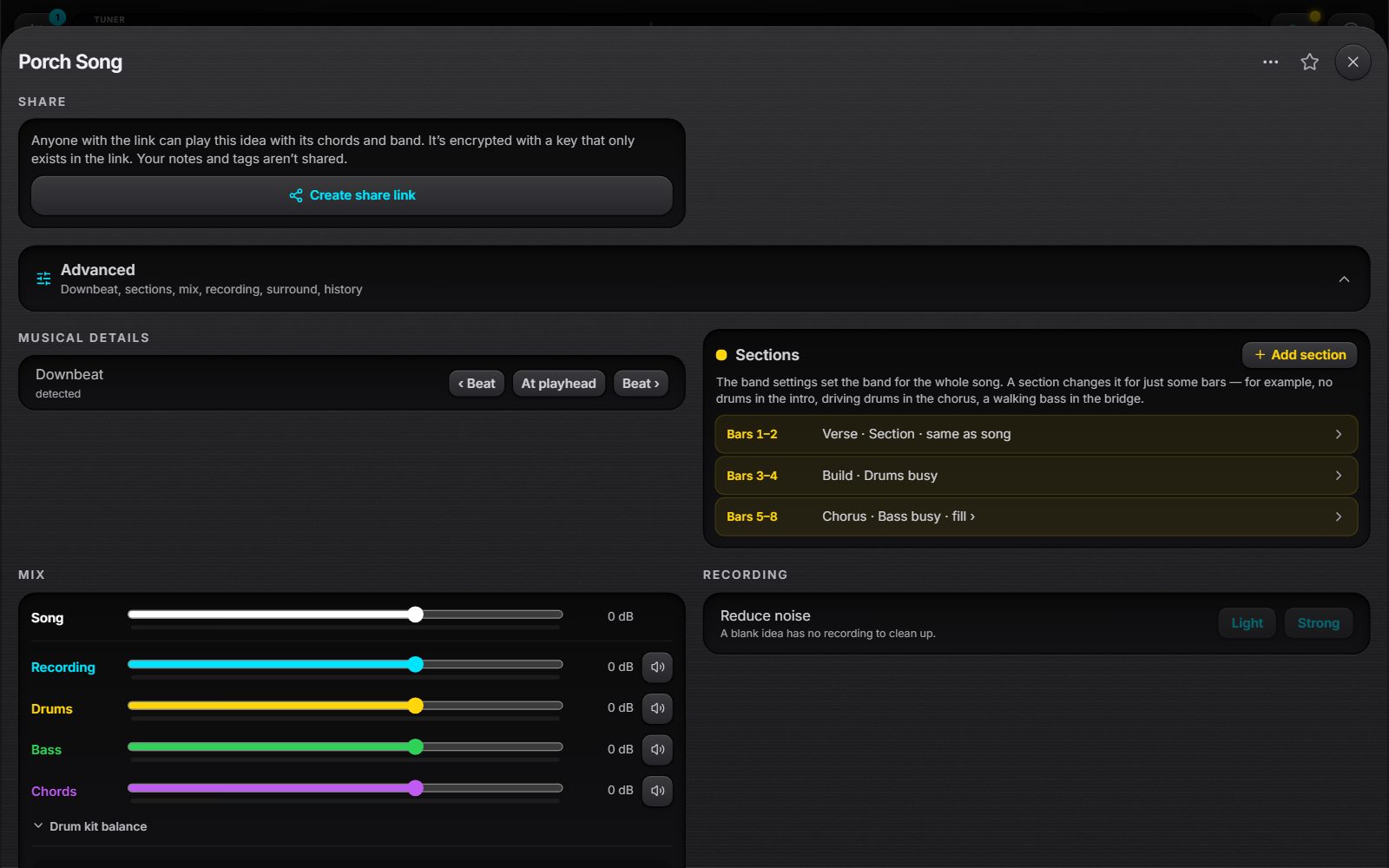
- Create share link gives you a link anyone can open to play the idea with its chords and band, and save a copy.
- The link carries its own key, so not even the server can play it. Your notes and tags aren't shared, nor your other takes.
- Update the link after changes, or revoke it at any time.